
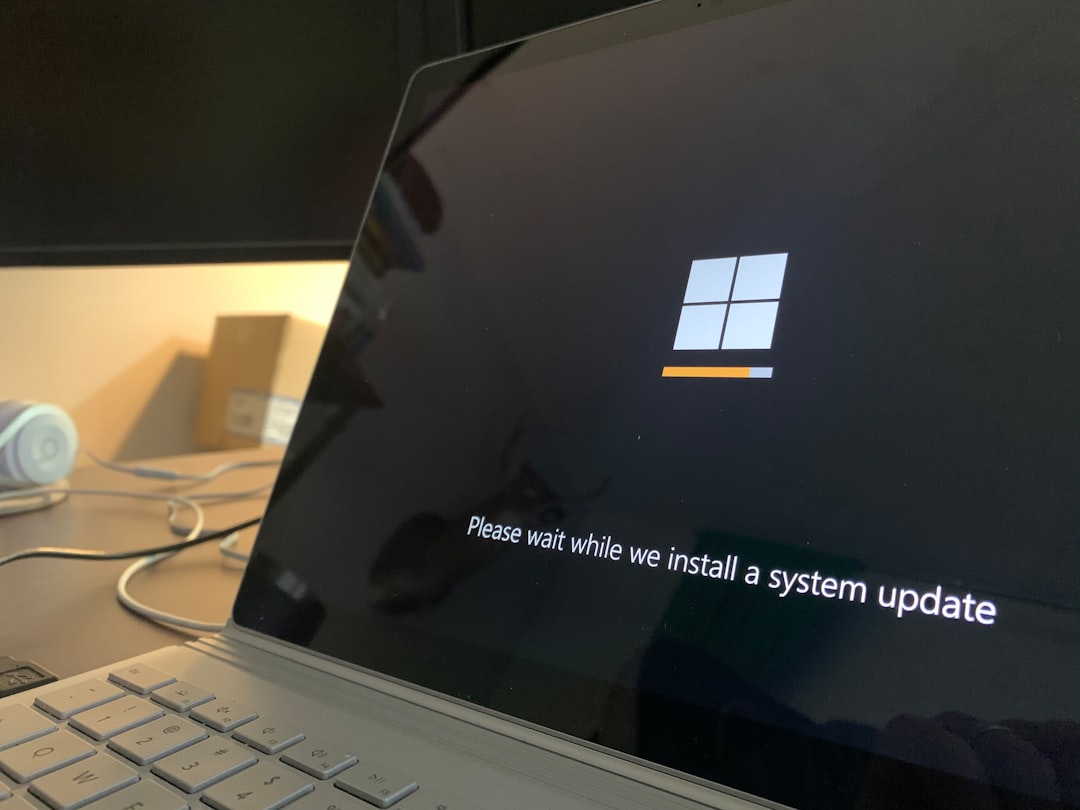
Windows 10 is a powerful and widely used operating system, but it’s not immune to occasional glitches. One particularly annoying issue users often face is the computer not restarting properly. Whether your system gets stuck on the “Restarting…” screen or simply fails to reboot, this can lead to serious frustration—especially when you have updates pending or work to complete. Luckily, there are quick and effective ways to solve this issue.
Here’s a practical and user-friendly guide to help you fix the Windows 10 not restarting problem, so you can get back to being productive without tearing your hair out.
1. Check for Pending Updates
Sometimes, Windows fails to restart because of incomplete or pending updates. Your system might be stuck trying to apply changes it can’t finish until the next reboot.
To check for updates:
- Go to Settings > Update & Security > Windows Update.
- Click Check for updates and install any that are available.
- After updates are installed, try restarting your PC again.
2. Disable Fast Startup
Fast Startup is a feature designed to reduce boot times, but it can sometimes interfere with the restart process.
To disable Fast Startup:
- Open the Control Panel and go to Power Options.
- Click Choose what the power buttons do.
- Click Change settings that are currently unavailable.
- Uncheck Turn on fast startup (recommended) and save changes.
Try restarting your PC after disabling this feature.
3. Use Command Prompt to Force a Restart
If the restart option in the Start Menu isn’t working, you can try restarting your system using Command Prompt.
Steps:
- Right-click the Start menu and choose Command Prompt (Admin) or Windows PowerShell (Admin).
- Type the following command:
shutdown /r /f /t 0 - Press Enter. This forces an immediate reboot and closes all applications.
4. Update Device Drivers
Corrupted or outdated drivers—especially for graphics or network components—can prevent your PC from restarting.
To update your drivers:
- Right-click the Start button and open Device Manager.
- Look for devices with a yellow exclamation mark.
- Right-click the problematic device and select Update driver.
It’s also a good idea to visit the manufacturer’s website for the latest drivers.
5. Run System File Checker
If system files are damaged or corrupted, your computer may struggle to restart properly.
To run System File Checker:
- Open Command Prompt (Admin).
- Type
sfc /scannowand press Enter. - Let the process complete, then try restarting your PC.
6. Perform a Clean Boot
Third-party software and services often interfere with the system’s startup and restart processes. A clean boot helps identify whether something you installed is causing the problem.
To perform a clean boot:
- Press Win + R, type
msconfig, and press Enter. - Under the Services tab, check Hide all Microsoft services, then click Disable all.
- Go to the Startup tab and open Task Manager.
- Disable all startup apps, then restart your system.
If the computer restarts correctly, you can then enable services one by one to pinpoint the problem.
7. Use System Restore
If your restart issues started recently, using a system restore point can roll back your system to a time when everything was working fine.
To perform a system restore:
- Go to Control Panel > Recovery > Open System Restore.
- Choose a restore point before the issue started happening.
- Follow the prompts to complete the restore process.
Final Thoughts
Restart problems on Windows 10 can stem from a variety of causes—from software conflicts to system file corruption. Fortunately, most of these issues can be quickly resolved using the steps outlined above. If none of them work, it may be time to consider more advanced troubleshooting or consult professional support. Otherwise, following these quick fixes should save you time and stress, and get your system running smoothly again.