
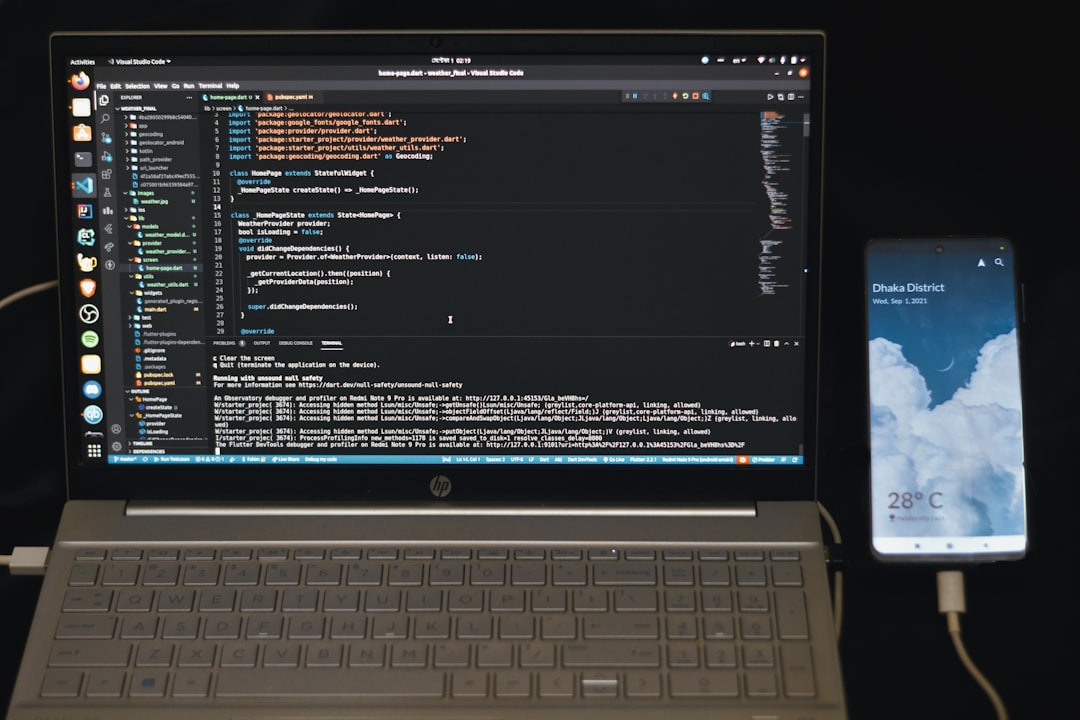
As software development continues to evolve, tools like DevGen AI are transforming how developers create, test, and deploy code. This intelligent assistant is designed to streamline software engineering by generating efficient code snippets, automating repetitive tasks, and offering intelligent suggestions throughout the development process. Whether you’re building a mobile app, a web service, or a full-scale enterprise platform, DevGen AI empowers developers to work smarter and faster.
What Is DevGen AI?
DevGen AI is a next-gen development assistant that uses advanced machine learning models to help developers write and manage code quickly. It integrates seamlessly with popular code editors like VS Code and JetBrains IDEs, understands context as you type, and enhances productivity by offering real-time code recommendations and error fixes.

Getting Started: A Step-by-Step Guide
1. Install DevGen AI
Before you can use DevGen AI, you need to install it into your development environment. Follow these steps:
- Open your code editor (e.g., Visual Studio Code).
- Navigate to the extensions or plugins section.
- Search for “DevGen AI” and click on Install.
- Restart your IDE to complete installation.
2. Authenticate and Configure Settings
Once installed, you’ll need to link the tool with your DevGen AI account:
- Open DevGen AI’s settings panel from your IDE toolbar.
- Sign in using your credentials or API key provided after registration.
- Customize project preferences – choose coding language preferences, framework support, and UI theme.
This configuration ensures better-contextualized suggestions and integration with your existing workflows.
3. Start Writing Smart Code
With DevGen AI enabled, you’ll notice its suggestions appearing as you type. These can include:
- Auto-complete lines of code based on your intent.
- Intelligent documentation comments and function summaries.
- Bug detection and resolution suggestions.
- Optimization of existing functions for performance improvement.
Suggestions are ranked by relevance, and you can accept or ignore each as needed. This ensures maximum control over your code.
4. Refactor and Test with Ease
DevGen AI also supports code refactoring and testing. You can highlight any section of code and ask the assistant to:
- Refactor for better readability or efficiency.
- Create test cases based on function logic.
- Identify potential edge cases and exceptions.

5. Leverage DevGen’s Project Insights
One of the more advanced features of DevGen AI is its ability to analyze your entire project. By scanning all files, it can:
- Generate architectural diagrams.
- Highlight dependencies and unused components.
- Provide suggestions for modularization and scalability.
This enables better planning, especially for long-term and team-based development projects.
Tips for Maximizing DevGen AI
- Update regularly – Keep the plugin up-to-date to access new features and security patches.
- Use voice or chat input – If supported, utilize voice commands or natural language queries for faster interactions.
- Collaborate – DevGen AI can also work in team settings, allowing synced insights and pooled learning across developers.
Conclusion
DevGen AI isn’t just a productivity tool—it’s a revolutionary shift in how developers build software. By integrating AI into everyday coding practices, teams can reduce errors, speed up delivery timelines, and enhance code quality. With this guide at hand, you’ll be ready to explore the full potential of DevGen AI and take your development projects to new heights.
FAQ
- Q: Is DevGen AI free to use?
A: DevGen AI offers a free tier with limited daily requests and code generation features. Premium plans are available for advanced usage and enterprise features. - Q: Which programming languages are supported?
A: DevGen AI supports popular languages including Python, JavaScript, Java, C#, Go, and more. Language support continues to expand with updates. - Q: Can DevGen AI be used offline?
A: While basic code insight features may work offline after initial setup, full access to cloud-based AI services requires an internet connection. - Q: Is DevGen safe for proprietary projects?
A: Yes. DevGen AI follows strict security protocols and offers options for on-premise deployment for organizations with sensitive data. - Q: How does DevGen AI differ from GitHub Copilot?
A: DevGen AI focuses more on full-stack project insights, refactoring, and team-based collaboration, whereas GitHub Copilot is primarily focused on code suggestion tasks.