
The Kindle App has revolutionized the way people read books today. Whether using a smartphone, tablet, or computer, readers can access a vast library of titles anytime, anywhere. However, for new users unfamiliar with e-readers, the question often arises: How exactly do you buy books through the Kindle App? Navigating the process is essential for a seamless digital reading experience. This guide provides a step-by-step approach to purchasing books on the Kindle App, including helpful tips and answers to frequently asked questions.
Why Can’t You Buy Kindle Books Directly in the App?
Before diving into the steps, it’s important to understand a limitation that may confuse first-time users. Due to certain policies and revenue-sharing arrangements between Amazon and app store providers (such as Apple and Google), users cannot purchase Kindle books directly within the Kindle App on iOS and Android devices.
Instead, purchases must be made through a web browser, either on a mobile device or desktop. Once purchased, the books appear instantly on the app, provided it’s connected to the internet. Let’s explore how this process works.
Step-by-Step Guide: Buying Kindle Books
Step 1: Log into Your Amazon Account
Ensure you are logged into your Amazon account. You can do this from any web browser on your device.
- Open your preferred browser (e.g., Safari, Chrome, Firefox).
- Go to Amazon.com.
- Click on Sign In at the top right corner and enter your login credentials.
Step 2: Search for the Book You Want to Buy
Use the Amazon search bar to find the Kindle book you’re interested in. You can search by title, author, or keyword.
- Type the book’s title, or a topic of interest in the search bar.
- Choose the correct format by looking for the version labeled Kindle Edition.
Tip: If the book is available with Kindle Unlimited or Audible narration, those options will be noted under the title.
Step 3: Purchase the Kindle Book
Buying a Kindle book is as simple as buying any other product on Amazon.
- Click on the book’s title to go to its product page.
- Ensure Kindle is selected under “Format.”
- Click on Buy now with 1-Click. If you have multiple devices, you may be prompted to select where to send the book.
Once the purchase is made, Amazon will automatically send the book to your default Kindle device or app. You can change this in the “Deliver to” list during the checkout step if necessary.
Step 4: Open the Kindle App
Now switch to the Kindle App on your device. Make sure the app is connected to the internet so it can sync and download your new purchase.
- Launch the Kindle App on your phone, tablet, or computer.
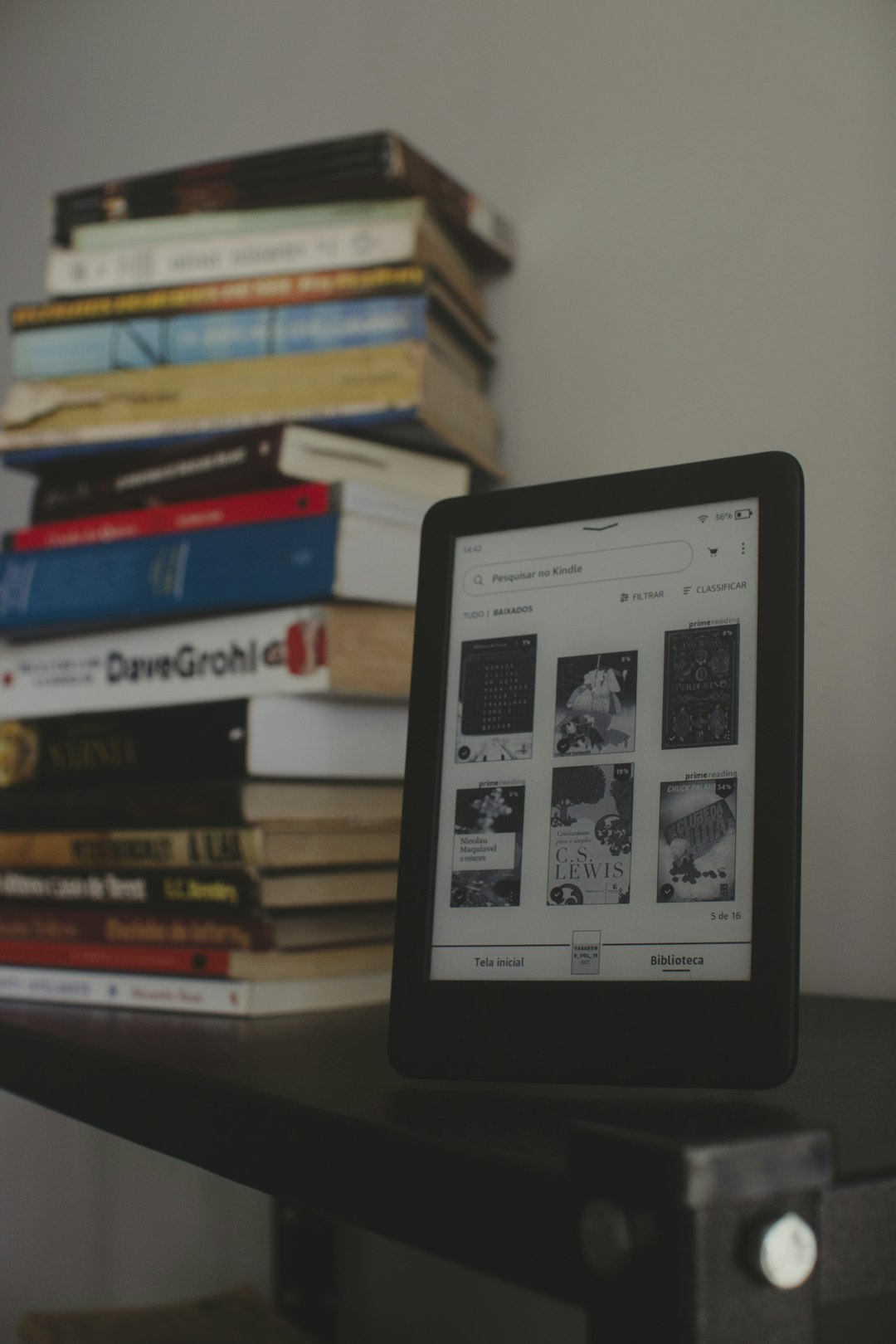
- Go to Library.
- Your new book should appear automatically. If not, swipe down to refresh your library.
Tip: If the book still doesn’t appear, check if you were logged into the correct Amazon account during purchase.
Alternative Ways to Buy Kindle Books
Besides using a browser on your device, there are a few other methods for buying Kindle books:
- Using a Desktop Browser: Visit Amazon.com on a laptop or desktop for a more expansive view and easier navigation.
- Using a Kindle Device: If you own a Kindle e-reader, you can buy books directly from it without needing an external browser.
- Using the Amazon App: While in-app Kindle book purchases are restricted on iOS, Android users can sometimes make purchases via the Amazon App. Still, a browser remains the most reliable method.
Managing Your Kindle Library
After purchasing, you can organize your Kindle Library to enhance your reading experience.
- Sorting: Use filters in the app to view books by title, author, or recent additions.
- Collections: Group similar genres or authors into collections to keep your library organized.
- Sync: Ensure Whispersync is enabled so you can start reading on one device and continue on another seamlessly.
Tips for Getting the Most Out of the Kindle Experience
To make your Kindle reading more enjoyable and efficient, consider the following:
- Subscribe to Kindle Unlimited: For avid readers, Amazon’s subscription service offers hundreds of thousands of titles for a fixed monthly fee.
- Enable Dark Mode: Especially useful for night reading, this ensures reduced eye strain.
- Highlight and Take Notes: Tap and hold text to highlight passages or make annotations – ideal for students and professionals.
- Use the Built-in Dictionary: Kindle apps come with a dictionary, Wikipedia links, and vocabulary builder to enhance your reading comprehension.
Frequently Asked Questions (FAQ)
Can I buy Kindle books directly from the Kindle App?
No. Due to app store restrictions, you cannot purchase Kindle books within the Kindle App itself on most iOS and Android devices. You must use a web browser to do so.
Where do I find the books I’ve purchased?
Purchased books appear in your Kindle Library within the app once it syncs. If a book does not appear immediately, refresh your library or ensure you’re logged into the correct Amazon account.
Do I need a Kindle device to read Kindle books?
No. The free Kindle App allows you to read purchased books on smartphones, tablets, and computers without needing a Kindle device.
Can I gift a Kindle book to someone else?
Yes, on the book’s product page on Amazon, click “Give as a Gift” and follow the prompts to send a digital book to someone’s email.
What is Kindle Unlimited, and is it worth it?
Kindle Unlimited is a subscription service offering unlimited access to a vast selection of Kindle books. It’s ideal for frequent readers and includes novels, self-help guides, and more.
Can I return a Kindle book after purchase?
Amazon allows returns on Kindle books within seven days of purchase. Go to Manage Your Content and Devices to initiate a return.
Is it safe to buy Kindle books from a browser?
Yes, as long as you are on a verified Amazon domain and logged into your account, it’s completely secure.
Conclusion
Buying books through the Kindle App may not be as direct as purchasing within other apps, but once you understand the process, it becomes second nature. By following these steps—searching Amazon with a browser, selecting your book, completing the purchase, and syncing with the Kindle App—you gain access to a massive library of books at your fingertips. The convenience, portability, and feature-rich environment make the Kindle App a top choice for digital readers worldwide.