
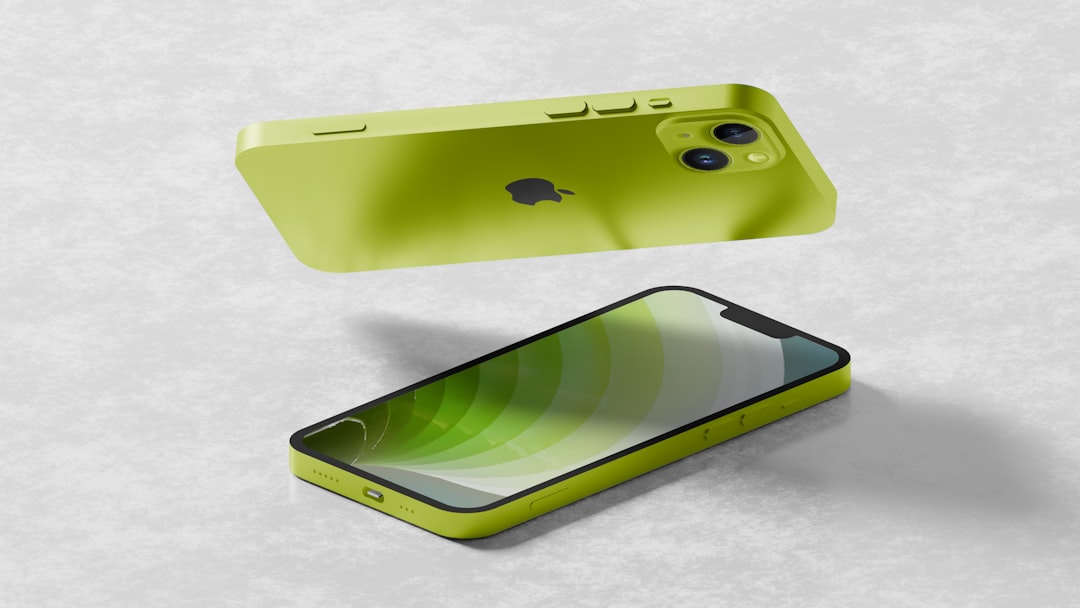
Few smartphone issues are as distracting and concerning as a green flickering screen on an iPhone. Whether it appears as a faint green tint, intermittent flashing, or persistent green lines, the problem can make everyday tasks frustrating and raise fears of expensive repairs. While the issue may seem like a serious hardware failure at first glance, the root cause can vary from simple software glitches to display panel damage.
TL;DR: A green flickering iPhone screen can be caused by software bugs, iOS update issues, display settings conflicts, or hardware damage to the OLED panel. Many cases can be resolved with simple fixes like adjusting brightness, disabling certain settings, or updating iOS. However, persistent flickering, visible green lines, or issues after physical damage may require screen replacement. Diagnosing the cause is key to deciding whether a repair is necessary.
Why Is an iPhone Screen Flickering Green?
Green flickering on an iPhone typically stems from one of two main categories: software-related issues or hardware problems. Identifying which category the issue falls into is the first step toward finding the right solution.
Modern iPhones, especially models with OLED displays, are more prone to color tint anomalies because OLED technology controls individual pixels differently from older LCD screens. When something disrupts that control — whether software miscommunication or panel degradation — flickering or green tinting may appear.
1. Software Glitches and iOS Bugs
Sometimes, the green flicker appears after an iOS update or while running a beta version of the software. In these cases, the issue is often temporary and software-based.
- Incomplete iOS updates can cause display calibration errors.
- System crashes may briefly disrupt screen rendering.
- App conflicts can trigger localized flickering.
- Beta versions of iOS often contain unresolved display bugs.
If the flickering only occurs when using a specific app, the issue is likely tied to that application rather than the display hardware itself.
2. OLED Display Behavior at Low Brightness
Many users report green flickering when brightness is set very low. OLED panels can struggle with consistent color rendering in dark conditions, particularly in gray or dark tones.
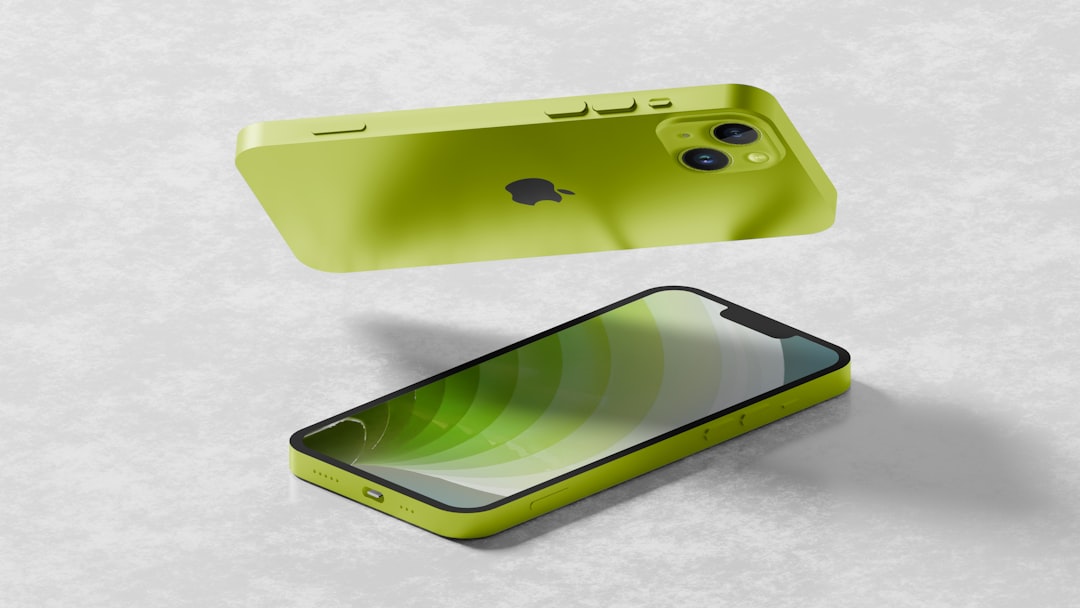
This issue may be more noticeable:
- In dark rooms
- When using Night Shift
- With True Tone enabled
- During low-power mode
In such cases, increasing brightness slightly may reduce or eliminate the flicker.
3. Display Settings Conflicts
Apple includes several display technology features that dynamically adjust screen color and brightness. Occasionally, these features may conflict.
Settings to check include:
- True Tone
- Night Shift
- Auto-Brightness
- Reduce White Point
Disabling these options one at a time can help determine if the flickering is caused by a calibration issue rather than hardware damage.
4. Physical Damage to the Screen
If the iPhone has been dropped, exposed to water, or subjected to pressure, the OLED panel may be physically damaged. Green lines or flashing may indicate deteriorating pixels or damaged display connectors.
Common signs of hardware damage include:
- Persistent green vertical lines
- Flickering that worsens over time
- Screen discoloration in specific areas
- Black spots or spreading green patches
When these symptoms appear, replacement becomes more likely.
5. Loose Internal Connections
Though less common, internal display connectors can loosen after impact. This may cause intermittent flickering that changes based on pressure applied to the phone’s frame.
In such situations, professional repair is required, as opening the device without proper tools may cause further damage.
How to Fix iPhone Green Screen Flickering (iOS Solutions)
Before considering screen replacement, several troubleshooting steps may resolve the issue.
1. Restart the iPhone
A simple restart can clear temporary system glitches. Force restarting is particularly effective if the flicker appeared suddenly.
2. Update iOS
If the flicker started after an update, check for newer patches. Apple often releases small updates to fix software rendering bugs.
Settings > General > Software Update
3. Adjust Display Settings
Try the following adjustments:
- Increase brightness above 30%
- Turn off Night Shift
- Disable True Tone
- Switch off Auto-Brightness
- Disable Reduce White Point under Accessibility
Testing the device after each change can help isolate the source.
4. Disable Low Power Mode
Low Power Mode reduces display performance to conserve battery. Turning it off may stabilize screen output.
5. Reset All Settings
This option does not erase personal data but resets system preferences.
Settings > General > Transfer or Reset iPhone > Reset > Reset All Settings
Misconfigured settings are sometimes responsible for persistent flickering.
6. Restore iPhone via Recovery Mode
If none of the above solutions work, restoring the device using a Mac or PC can eliminate deeper software corruption.
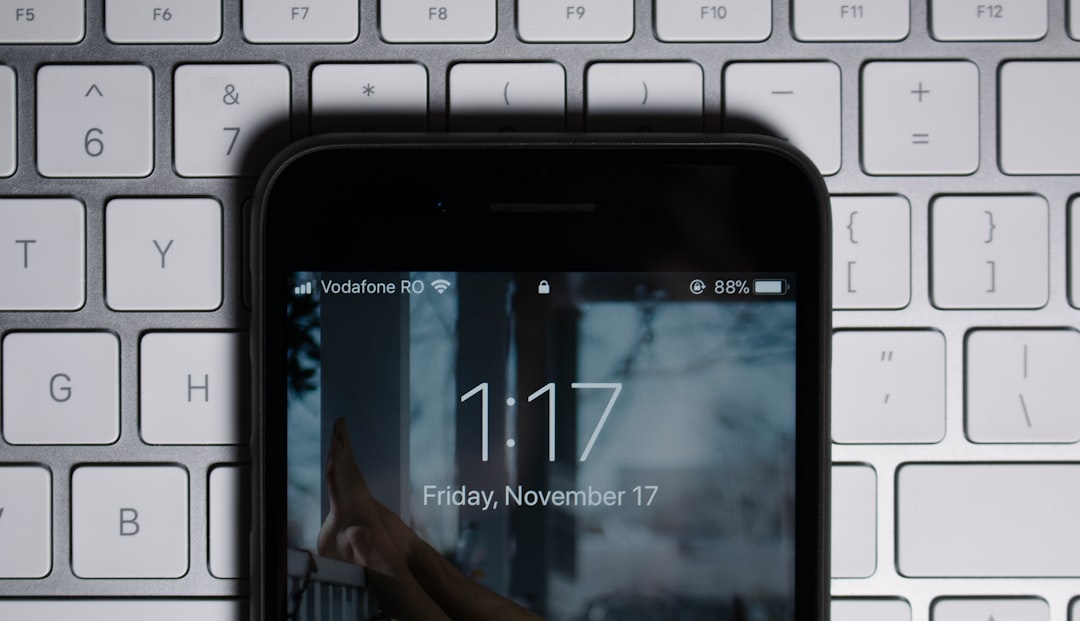
This step should be performed after backing up important data.
When Is Screen Replacement Necessary?
Not all green flickering can be fixed through software. Recognizing hardware failure signs helps determine when professional repair is required.
Signs the Display Needs Replacement
- Flickering persists after a full factory restore
- Visible green lines remain permanently
- Screen flickers even in screenshots or safe mode
- Physical cracks or impact marks are visible
- Touch responsiveness is affected along with flickering
If the problem remains visible during the Apple logo startup screen, hardware damage is strongly suspected.
OLED panels degrade over time, and once pixel damage spreads, replacement is the only long-term fix.
Cost of iPhone Screen Replacement
Replacement costs vary depending on the model:
- Standard models: Generally lower repair costs
- Pro and Pro Max models: Higher costs due to advanced OLED panels
Apple-certified repairs are more expensive than third-party services but preserve warranty and ensure genuine parts.
Using non-original display panels may lead to:
- Color inconsistencies
- Brightness irregularities
- True Tone malfunction
Can Green Flickering Get Worse Over Time?
Yes, particularly if the issue is hardware-related. Pixel damage may spread, and intermittent flicker can become constant. Water damage can also corrode internal components gradually.
If the problem is software-based, however, it typically does not worsen physically and may disappear after updates.
Does Apple Cover Green Screen Issues Under Warranty?
If the iPhone is under warranty and shows no signs of physical damage, Apple may repair or replace the device free of charge. AppleCare+ covers accidental damage with a service fee.
However, cracked screens or liquid damage may void standard warranty coverage.
Preventing Future Screen Issues
While not all display problems are preventable, users can reduce risk by:
- Avoiding extreme brightness settings for prolonged periods
- Using certified chargers
- Installing stable iOS releases instead of beta versions
- Protecting the phone with shock-resistant cases
- Avoiding exposure to moisture
Maintaining healthy battery performance may also help, as unstable power delivery can occasionally impact display output.
Frequently Asked Questions (FAQ)
Why does the green flicker only appear at low brightness?
OLED displays sometimes struggle with color calibration at very low brightness levels. Slightly increasing brightness often reduces or eliminates the flicker.
Is green flickering a sign of screen burnout?
It can be, but not always. Burn-in usually appears as faint static images, while flickering is more often related to calibration or pixel control issues.
Will a factory reset fix green flickering?
If the issue is software-based, a factory reset may resolve it. If hardware damage is present, the flicker will persist after reset.
Can a green flickering screen fix itself?
Software-related flickering may disappear after updates or restarts. Hardware damage, however, typically worsens rather than improving.
Should the iPhone be used if the screen flickers?
It is generally safe to use temporarily, but ongoing flickering may indicate deeper hardware issues. Backing up data is recommended if the problem persists.
Is third-party repair safe?
Reputable repair shops can provide quality service, but non-genuine parts may affect display performance and disable features like True Tone.
How can someone confirm whether it’s software or hardware?
If the flicker remains after a full iOS restore and appears during startup (before apps load), hardware damage is the likely cause.
A green flickering iPhone screen can range from a minor annoyance to a serious hardware issue. By systematically testing software fixes first, users can avoid unnecessary repair costs. When hardware failure is confirmed, timely display replacement ensures the device remains functional and safe for continued use.