
Siri is known for answering questions, telling jokes, and helping with everyday tasks—but did you know you can actually customize what Siri says? If you’ve ever wondered how to make Siri say “00000”, whether for fun, a prank, testing voice output, or automation purposes, the process is easier than you might think. With a few simple tweaks using built-in Apple features, you can control what Siri speaks back to you.
TLDR: You can make Siri say “00000” by using features like Shortcuts, text replacement, or renaming contacts. The easiest way is to create a Shortcut that makes Siri read the numbers aloud on command. This method works on iPhone, iPad, and even Mac. No hacking or third-party apps required—just built-in Apple tools.
Why Would You Want Siri to Say “00000”?
Before jumping into the how-to, it helps to understand why people want Siri to say something specific like “00000.” Here are a few common reasons:
- Fun and pranks – Trick friends into thinking something mysterious is happening.
- Testing voice output – Developers or content creators may want numeric-only responses.
- Accessibility practice – Testing how Siri pronounces repeated numbers.
- Automation triggers – Use spoken numbers as cues in routines or automation systems.
Whatever your reason, Apple gives you more control over Siri than you may realize.
Method 1: Use the Shortcuts App (Recommended)
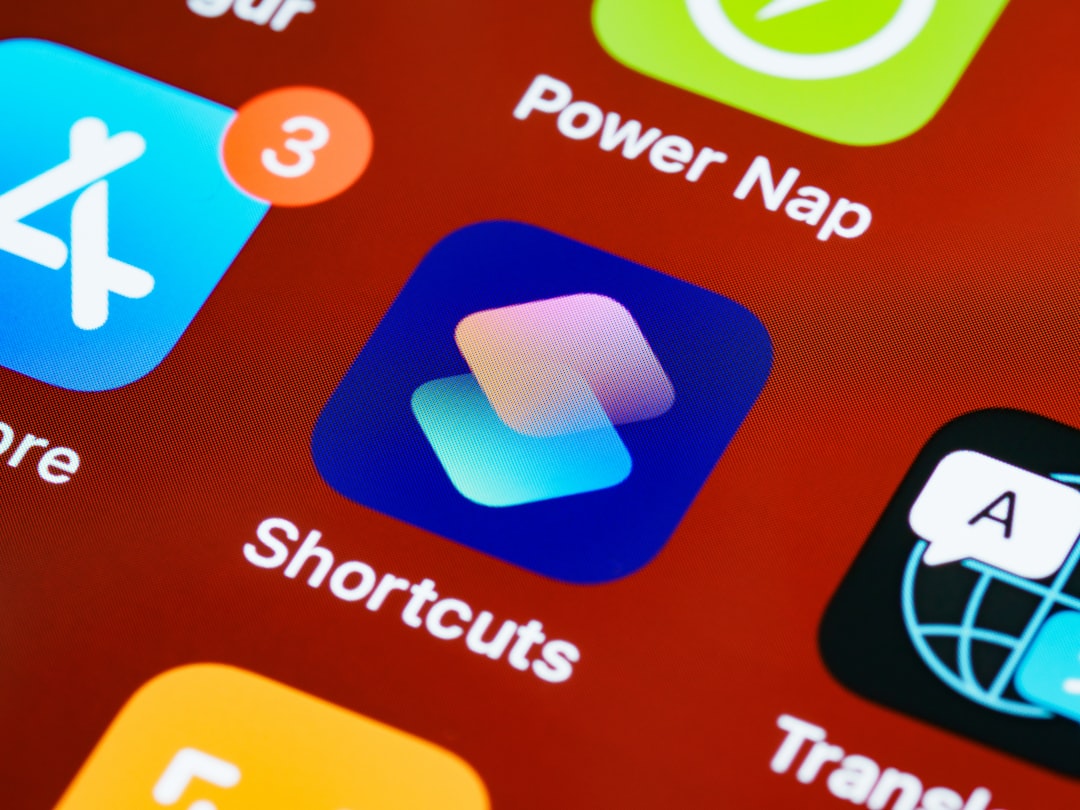
The easiest and most reliable way to make Siri say “00000” is by using Apple’s Shortcuts app. This method ensures Siri speaks exactly what you want.
Step-by-Step Guide
- Open the Shortcuts app on your iPhone or iPad.
- Tap the + icon in the top-right corner to create a new shortcut.
- Select Add Action.
- Search for and choose Speak Text.
- In the text field, type: 00000.
- Tap the small arrow next to “Speak Text” if you want to adjust voice, pitch, or speed.
- Tap Next and name the shortcut something simple like “Say Zero.”
- Tap Done.
Now, activate Siri and say:
“Hey Siri, Say Zero.”
Siri will respond by speaking “zero zero zero zero zero” (or a continuous numeric pronunciation depending on your settings).
Why This Method Works Best
- Fully customizable
- Works offline
- No third-party downloads needed
- Can be expanded into larger automations
Method 2: Rename a Contact to “00000”
This is a quick and slightly playful method.
How to Do It
- Open the Contacts app.
- Create a new contact.
- In the First Name field, type 00000.
- Save the contact.
Now ask Siri:
“Hey Siri, call 00000.”
Siri will respond by saying something like “Calling 00000.” This forces Siri to pronounce the string of numbers.
Limitation: Siri may attempt to actually place a call, so be cautious using this method.
Method 3: Use VoiceOver for Precise Number Reading
If you want Siri to articulate each zero clearly and separately, you can enable VoiceOver—Apple’s accessibility screen reader.
Activate VoiceOver
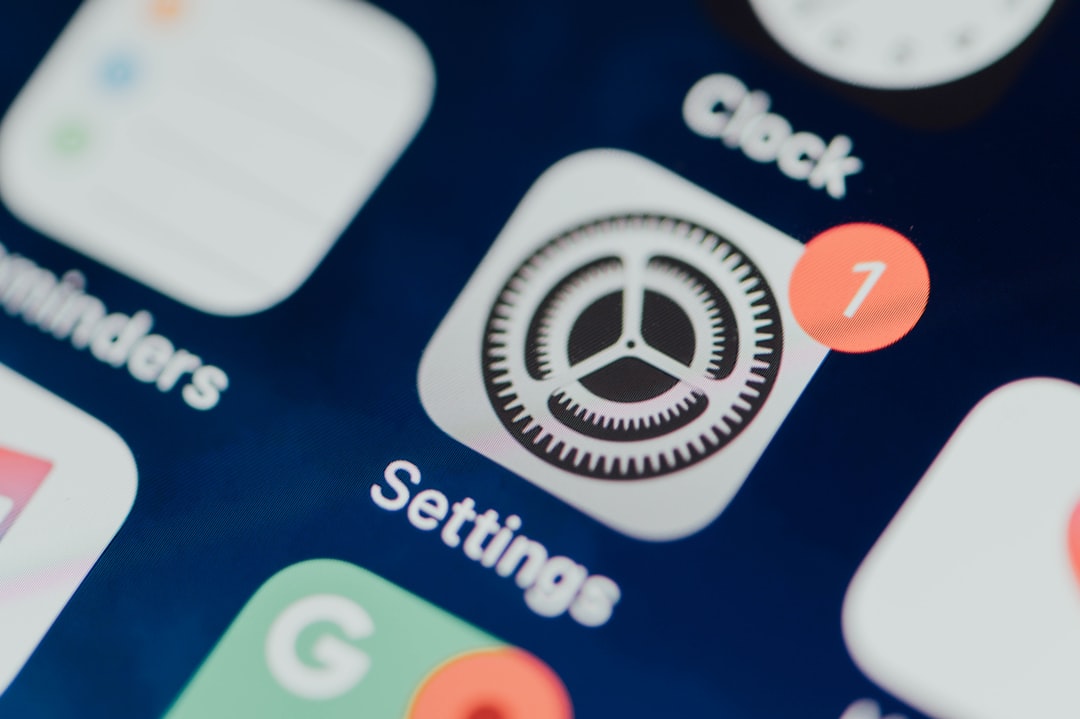
- Go to Settings.
- Tap Accessibility.
- Select VoiceOver.
- Turn it on.
Now, when highlighting text that says “00000,” VoiceOver will read it exactly as written.
Best For:
- Pronunciation testing
- Accessibility demonstrations
- Precise numerical speech output
Method 4: Use Text Replacement (Creative Trick)
This is more experimental but still fun.
Steps
- Go to Settings.
- Tap General → Keyboard.
- Select Text Replacement.
- Tap the + icon.
- In the phrase field, enter 00000.
- In the shortcut field, enter something simple like zz.
- Save.
Now whenever “zz” appears in supported areas, you can expand it to “00000.” Combined with Siri dictation and reading tools, this can create interesting speech triggers.
Comparison Chart of Methods
| Method | Difficulty | Customization Level | Best For | Risk of Errors |
|---|---|---|---|---|
| Shortcuts App | Easy | High | Reliable voice command | Very Low |
| Rename Contact | Very Easy | Low | Quick trick | May attempt to call |
| VoiceOver | Medium | Medium | Precise pronunciation | Low |
| Text Replacement | Medium | Medium | Creative automation | Medium |
Advanced Customization: Make It Sound Unique
Want to take things further? You can customize how Siri says “00000.”
Change Siri’s Voice
- Go to Settings.
- Tap Siri & Search.
- Select Siri Voice.
- Choose a different accent or gender.
This changes how the zeros are pronounced. Some voices stretch numbers slightly, while others say them more crisply.
Adjust Speaking Rate (Shortcuts Method)
Inside the Speak Text action in Shortcuts, you can:
- Slow down speech speed
- Increase pitch
- Change voice style
This can create dramatic effects—for example, a slow robotic “zero… zero… zero…” sequence.
Will Siri Say It as “Zero” or “Oh”?
You might wonder: will Siri say “zero zero zero zero zero” or “oh oh oh oh oh”?
The answer depends on:
- Your region settings
- Your Siri voice language
- Context of the number string
If you need guaranteed pronunciation, spelling it out like:
zero zero zero zero zero
inside the Shortcuts app ensures there is no confusion.
Troubleshooting Tips
If Siri doesn’t say “00000” correctly:
- Make sure Shortcuts permissions allow Siri access.
- Restart your device.
- Check your language settings.
- Update to the latest iOS version.
Sometimes Siri interprets numeric strings differently depending on how they’re triggered, so testing different formats (“00000” vs “0 0 0 0 0”) can help.
Is This Safe?
Yes. All the methods described here use official Apple features. There’s no need for third-party apps, jailbreaking, or system modifications.
However, avoid:
- Setting emergency numbers as shortcuts
- Using contact tricks that might accidentally call someone
- Creating voice triggers that interfere with important automations
Final Thoughts
Making Siri say “00000” is surprisingly simple—and even a little fun. Whether you use the Shortcuts app for a clean, reliable solution, rename a contact for a quick trick, or explore VoiceOver for precise pronunciation, Apple gives you built-in tools to control the experience.
The Shortcuts method stands out as the best overall choice because it offers full customization and avoids accidental side effects. Plus, it opens the door to more advanced automation possibilities later.
So go ahead—try it out. With just a few taps, you can make Siri say exactly what you want… even if it’s just five zeros in a row.