
Video overlays are one of the most powerful tools in modern video editing. Whether you want to add cinematic effects, insert logos, layer text animations, or create eye-catching picture-in-picture sequences, overlays can completely transform a basic video into a polished production. CapCut PC, the desktop version of the popular editing software, makes overlay editing accessible while still offering advanced customization options.
TL;DR: To add an overlay in CapCut PC, import your media, drag your main footage to the timeline, then place the overlay clip on a track above it. Use resizing, opacity, blending modes, and keyframes to fine-tune placement and animation. CapCut PC supports videos, images, text, stickers, and effects as overlays, making it a versatile tool for creative editing. Mastering layering and track management is key to achieving professional results.
What Is an Overlay in CapCut PC?
An overlay is any video, image, text, or graphic element placed on top of your primary footage. Unlike transitions (which connect clips), overlays sit on a separate track and play simultaneously with the base video.
Common types of overlays include:
- Text overlays for titles and captions
- Logo overlays for branding or watermarks
- Light leaks and lens flares for cinematic mood
- Picture-in-picture videos for reactions or tutorials
- Animated graphics and stickers for engagement
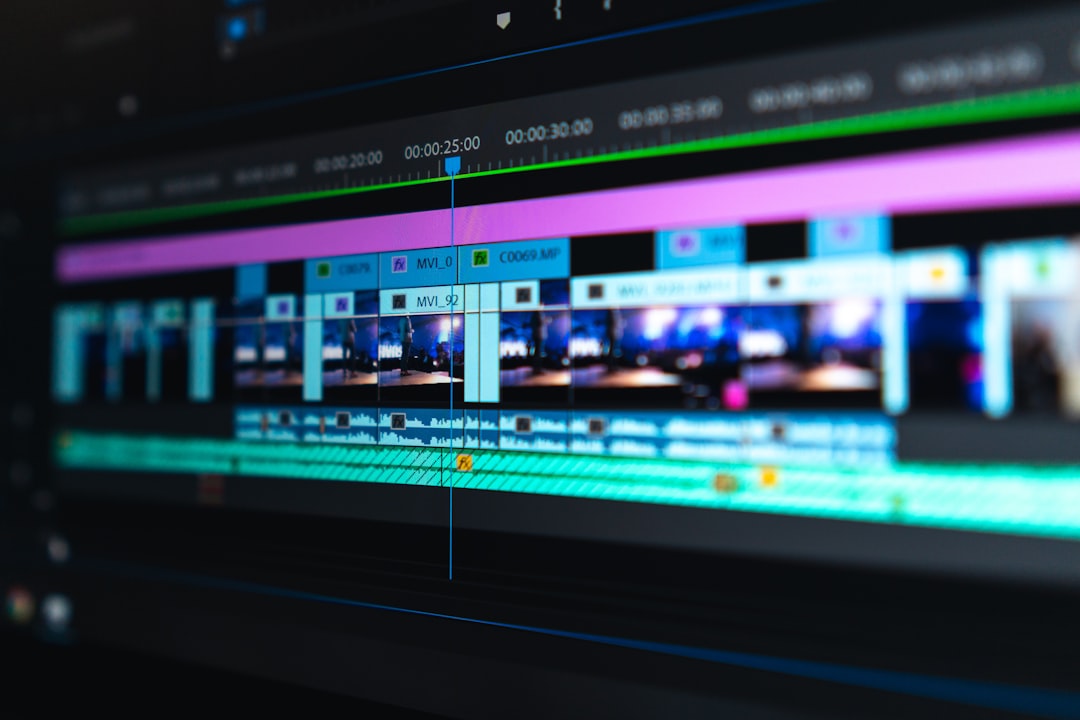
Understanding how layering works is essential because CapCut PC uses a multi-track timeline. Anything placed on a higher track appears above the layers below it.
Image not found in postmetaStep-by-Step: How to Add an Overlay in CapCut PC
Step 1: Import Your Media
Open CapCut PC and create a new project. Click Import to bring in:
- Your main video clip
- The image, video, or graphic you want to use as an overlay
Drag your main video to the timeline first. This becomes your base layer.
Step 2: Add the Overlay to a Track Above
To insert your overlay:
- Drag the overlay file from the media panel.
- Drop it onto a timeline track above your main video.
- Adjust the overlay’s position so it aligns with the portion of video where you want it to appear.
If necessary, CapCut automatically creates a new track when you drag media above an existing layer.
Step 3: Resize and Reposition
After placing the overlay:
- Click on it in the preview window.
- Use the corner handles to resize.
- Click and drag to reposition it.
This is especially useful for picture-in-picture effects, where the overlay should occupy only a portion of the screen.
Step 4: Adjust Opacity and Blending
On the right-hand editing panel, you’ll find controls for:
- Opacity: Reduce transparency for subtle effects.
- Blend modes: Experiment with Screen, Multiply, Overlay, and Add for creative lighting results.
For instance, if you’re adding a light flare overlay with a black background, switching to Screen blending mode removes the black and keeps the light effect visible.
Step 5: Trim and Time Your Overlay
Just like a normal clip, overlay elements can be trimmed.
- Drag the clip edges inward to shorten it.
- Split it if needed using the cut tool.
- Move it left or right to adjust when it appears.
Timing overlays precisely enhances storytelling impact, especially for reaction inserts, meme edits, or animated titles.
Using Text and Stickers as Overlays
CapCut PC includes built-in tools for adding text and stickers, which also function as overlays.
Adding Text Overlay
- Click the Text tab.
- Choose Add Text or select a template.
- Drag it to the timeline.
- Customize font, color, size, animation, and duration.
Because text appears on its own track layer, you can fully control positioning and animation independently of your main footage.
Adding Stickers or Effects
Similarly:
- Go to the Stickers or Effects tab.
- Select your desired element.
- Drag it onto a track above your base video.
Many effects are already optimized with blending and animation presets, allowing quick enhancement with minimal setup.
Advanced Overlay Techniques
1. Keyframe Animation
Keyframes allow you to animate movement, scaling, or rotation over time.
To apply keyframes:
- Select your overlay clip.
- Move the playhead to the starting position.
- Add a keyframe for position or scale.
- Move the playhead forward.
- Change the overlay’s position or size.
CapCut automatically creates smooth animation between the keyframes.
Example: Make your logo slide into the screen, or animate a reaction video popping into the corner.
2. Masking for Creative Effects
The masking tool allows you to partially hide your overlay.
- Create circular face cam effects.
- Blend objects into scenery.
- Design split-screen visuals.
This feature dramatically expands creative possibilities when combined with feathering and blur.
3. Chroma Key (Green Screen Overlays)
If your overlay has a green background:
- Select the overlay clip.
- Enable Chroma Key.
- Use the color picker to remove the green backdrop.
- Adjust strength sliders for clean removal.
This method is excellent for adding animated characters, special effects, or dynamic backgrounds.
Image not found in postmetaOverlay Tools in CapCut PC: Comparison Chart
Here’s a quick comparison of the main overlay-related tools in CapCut PC:
| Tool | Best For | Customization Level | Ease of Use |
|---|---|---|---|
| Video/Image Overlay | Picture in picture, logos, reactions | High | Easy |
| Text Overlay | Titles, subtitles, captions | High | Very Easy |
| Stickers | Fun, animated elements | Medium | Very Easy |
| Effects Overlay | Cinematic enhancements | Medium to High | Easy |
| Chroma Key | Professional green screen work | High | Moderate |
This comparison helps you determine which overlay method best suits your editing goal.
Common Mistakes to Avoid
Even though adding overlays is straightforward, beginners often encounter avoidable issues.
- Placing overlays on the same track as the main video: Always position them above.
- Ignoring opacity settings: Full opacity may look harsh or unnatural.
- Poor timing: Late or early overlays reduce impact.
- Overusing effects: Too many overlays clutter the visual experience.
Balance is key. A subtle, well-timed overlay is often more powerful than flashy, continuous effects.
Creative Ideas for Using Overlays
To make your videos stand out, consider experimenting with:
- Reaction cam overlays for commentary or gaming videos
- Animated subscribe buttons for YouTube content
- Cinematic rain or snow effects
- Gradient color washes using blending modes
- Bokeh and light overlays for romantic or nostalgic tone
When combined with sound effects and transitions, overlays contribute significantly to professional-quality storytelling.
Exporting Your Final Video
Once your overlays are perfect:
- Click Export.
- Select resolution (1080p or 4K recommended).
- Choose frame rate and format.
- Start export.
Before publishing, always preview the full video to ensure overlays appear correctly and no unintended elements remain on hidden tracks.
Why Overlays Matter in Modern Content Creation
In today’s fast-paced digital environment, audiences expect dynamic visuals. Overlays keep content engaging by adding visual layers that reinforce your message. Whether you’re creating YouTube tutorials, TikTok edits, marketing videos, or cinematic storytelling pieces, overlays increase depth, branding, and retention.
CapCut PC stands out because it balances simplicity and advanced capability. Beginners can easily drag and drop overlays, while experienced editors can experiment with keyframes, masking, chroma key, and blending modes.
Final Thoughts
Learning how to add overlays in CapCut PC opens up a new realm of creative control. By mastering track layering, opacity adjustments, blending modes, and animation tools, you can dramatically elevate the quality of your videos. The process is simple at its core: place the overlay on a higher track, customize it, and time it properly. Yet within that simplicity lies enormous creative potential.
Start with basic text or logo overlays, then gradually explore green screens, animated motion, and cinematic lighting effects. With practice, overlays will become one of your most powerful storytelling tools in CapCut PC.