
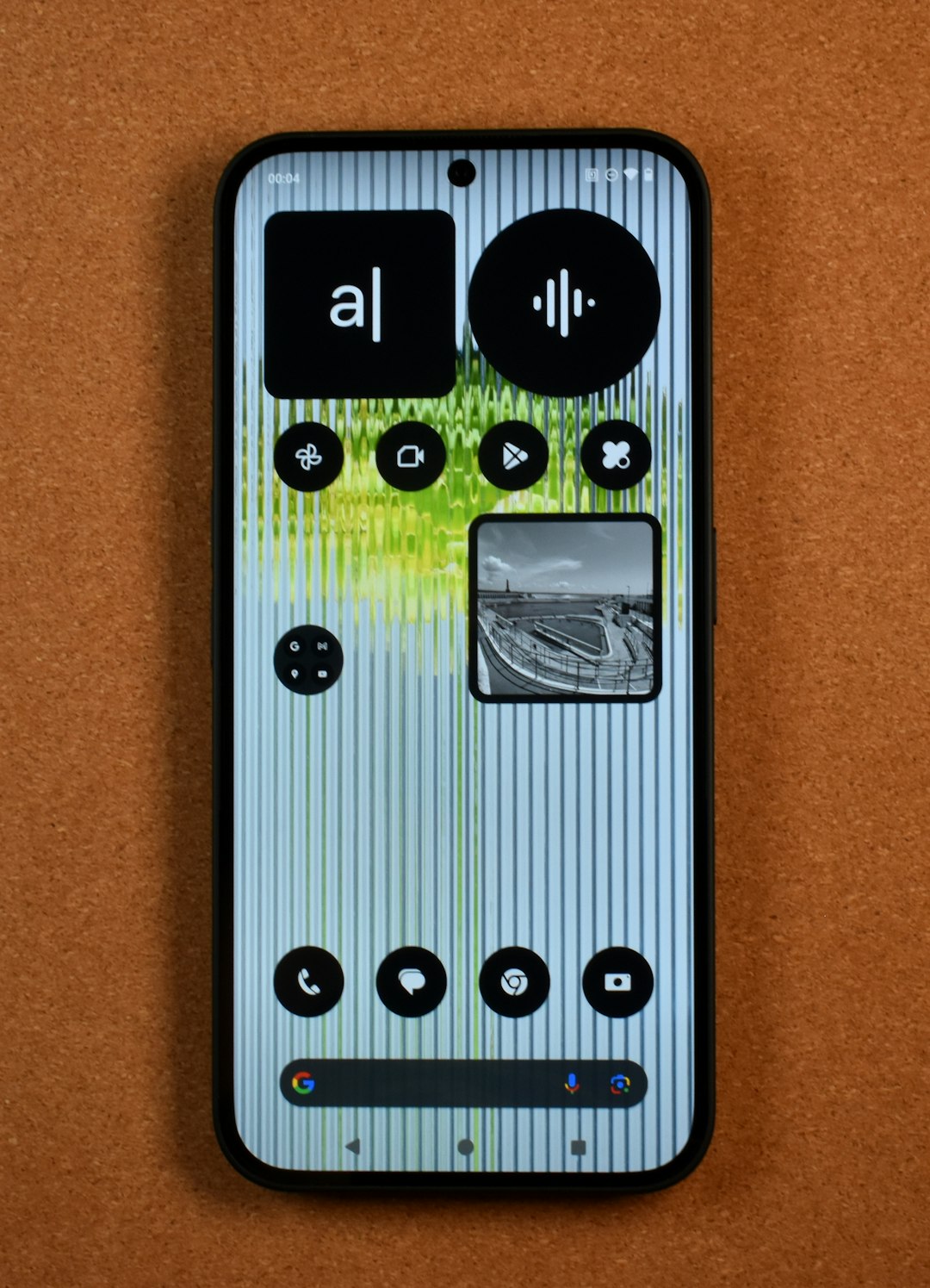
Switching phones is exciting. Rebuilding your home screen? Not so much. If you use Microsoft Launcher on Android, you might wonder: can it save your icon layout? Can it bring everything back just the way you left it? Let’s break it down in a simple, fun way.
TLDR: Yes, Microsoft Launcher can back up your home screen layout, but only within certain limits. It syncs through your Microsoft account and restores app icons, layout structure, and settings. However, it does not always perfectly restore widgets or apps that are missing. There are workarounds if you want extra safety.
First Things First: Does Microsoft Launcher Save Icon Layouts?
Short answer: Yes, it does.
Microsoft Launcher includes a built-in backup and restore feature. This lets you save:
- Home screen layout
- Icon positions
- Folders and folder names
- Launcher settings
- Dock setup
- Gestures and preferences
It stores this backup in your Microsoft account. That means you can restore it on:
- The same phone after a reset
- A new Android phone
- Another Android device using Microsoft Launcher
Sounds perfect, right? Well… almost.
How the Backup Process Works
The process is simple. Here’s how you do it:
- Open Microsoft Launcher Settings.
- Tap Backup & Restore.
- Select Back up to cloud storage.
- Make sure you’re signed into your Microsoft account.
That’s it. Your setup gets saved to the cloud.
When you get a new phone, just install Microsoft Launcher, sign in, and choose Restore.
Easy. Mostly painless.
What Gets Restored Perfectly?
Let’s talk about what works really well.
1. Icon Positions
Your icons should return to the exact same grid spots.
2. Folders
Folder names and grouping usually restore correctly.
3. Pages
If you had five home screens, you’ll get five back.
4. Launcher Settings
Themes, gestures, icon size, layout density — these settings are restored.
In most normal situations, your phone will feel familiar again within minutes.
What Does NOT Restore Perfectly?
This is where reality steps in.
1. Missing Apps
If an app is not installed on the new phone, its icon will not magically appear. You may see an empty spot or need to reinstall the app manually.
2. Widgets
Widgets are tricky. Due to Android security rules, many widgets must be manually added again.
This includes:
- Clock widgets
- Weather widgets
- Calendar widgets
- Third party app widgets
You’ll often see a placeholder where the widget was. But you still need to reconfigure it.
3. Different Screen Sizes
If your new phone has:
- A different screen resolution
- A different aspect ratio
- A foldable display
Your layout may shift slightly.
Icons could move. Spacing might change. It won’t be chaos. But it may not be pixel-perfect.
Sync Limits You Should Know
Microsoft Launcher sync is helpful. But it’s not unlimited magic.
Here are the main limits:
- Only works within Microsoft Launcher (not other launchers)
- Does not sync between Android and iPhone home screens
- Does not sync app data
- Does not back up system settings
This is a launcher-level backup, not a full phone backup.
Think of it as saving your desk layout. Not the stuff inside the drawers.
What About Automatic Backups?
Microsoft Launcher can perform automatic backups if enabled.
In settings, you can turn on regular backup syncing. That way:
- You don’t forget to back up manually
- Your layout stays updated in the cloud
Still, it’s smart to manually back up right before switching phones.
Better safe than sorry.
Comparison: Microsoft Launcher vs Other Launchers
Wondering how Microsoft Launcher compares to others when it comes to layout backup?
| Launcher | Cloud Backup | Icon Layout Restore | Widget Restore | Cross Device Sync |
|---|---|---|---|---|
| Microsoft Launcher | Yes Microsoft account | Yes mostly accurate | Limited manual setup needed | Yes Android only |
| Nova Launcher | Local backup file | Yes very accurate | Limited | Manual transfer required |
| Samsung One UI | Samsung Cloud | Yes on Samsung devices | Partial | Samsung devices only |
| Pixel Launcher | Google backup | Basic restore | Limited | Pixel devices mainly |
Microsoft Launcher sits comfortably in the middle. Not perfect. Not bad.
Best Workarounds for a Perfect Restore
If you want zero surprises, try these tricks.
1. Take Screenshots
This sounds old school. But it works.
Before switching phones:
- Screenshot every home screen page
- Screenshot folders open
- Screenshot widget configurations
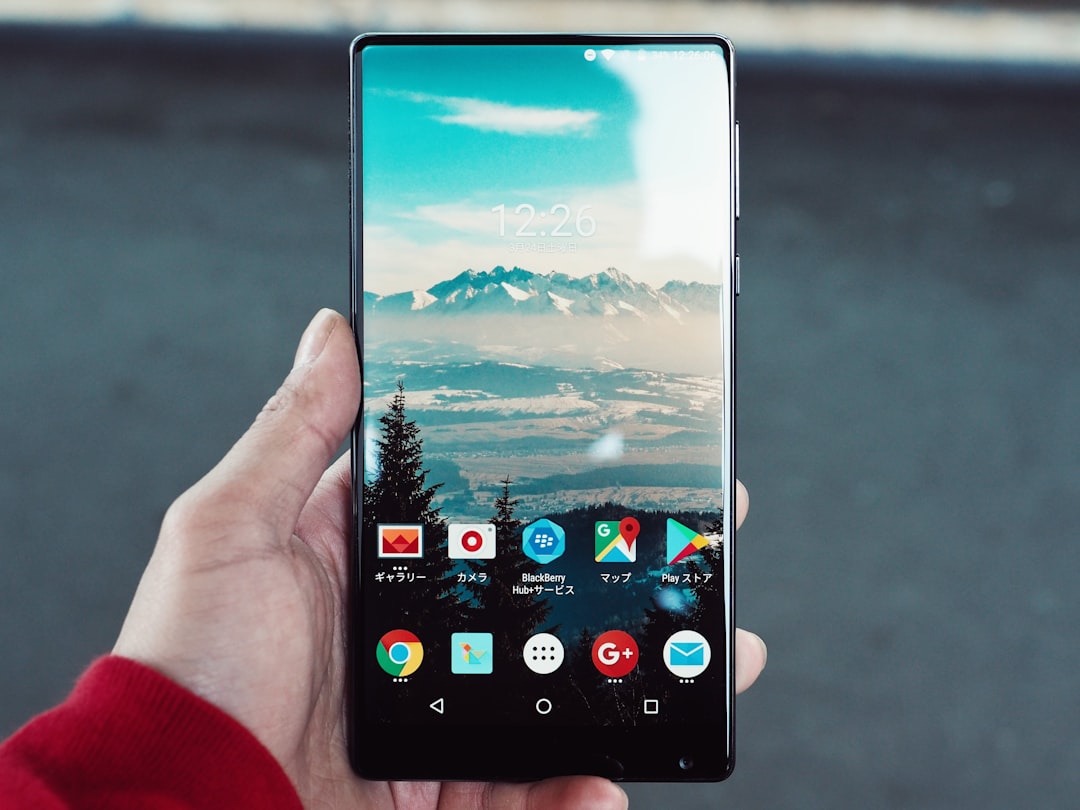
If something restores incorrectly, you’ll have a visual guide.
2. Install All Apps First
Before restoring your layout:
- Sign into Google Play
- Reinstall all your apps
- Then restore Microsoft Launcher backup
This reduces empty icon gaps.
3. Match Grid Settings
Check grid size on your old phone:
- 4×5?
- 4×6?
- 5×5?
Set the same grid size on the new device before restoring.
This helps keep icons aligned properly.
4. Use Local Backup as Extra Insurance
Some users double-protect themselves.
You can:
- Use Microsoft cloud backup
- Also use a full Android device backup via Google One
More safety. Less stress.
What Happens During a Factory Reset?
Good news. Your Microsoft Launcher backup stays safe in the cloud.
After resetting:
- Install Microsoft Launcher again
- Sign into your Microsoft account
- Tap Restore
Your layout should return.
Just remember: install missing apps afterward if needed.
Is It Reliable Long Term?
For most users, yes.
Microsoft Launcher has been stable for years. Backup and restore works consistently across:
- Samsung devices
- Pixel phones
- OnePlus phones
- Motorola devices
However, Android updates can occasionally cause small layout shifts.
Nothing dramatic. Just minor adjustments.
When Things Go Wrong
Sometimes restore does not show up.
Common reasons:
- You are logged into a different Microsoft account
- Backup was never created
- Internet connection is weak
Solution?
- Check account login first
- Force sync in launcher settings
- Restart the phone
Simple steps solve most issues.
Who Should Rely on Microsoft Launcher Backup?
This feature is great for:
- People who upgrade phones often
- Users who customize heavily
- Anyone who loves organized icon grids
It may not be enough for:
- Extreme widget users
- People switching between very different phone sizes
- Those moving outside the Android ecosystem
Final Thoughts
So, can Microsoft Launcher save icon layouts?
Yes. And it does a solid job.
It restores:
- Your icons
- Your folders
- Your structure
But it cannot fully restore:
- Widgets automatically
- Apps that aren’t installed
- Perfect spacing across different screen sizes
The best strategy?
Use the built-in cloud backup. Take screenshots. Install apps first. Then restore.
Do that, and your new phone will feel like home within minutes.
No more rearranging 87 icons at midnight.
You’re welcome.