
Disabling a firewall can feel like walking a tightrope—especially when you’re trying to optimize access to private trackers like MyAnonamouse. While connectivity issues can sometimes stem from firewall restrictions, turning off protection entirely can expose your system to unnecessary risks. The key is not to disable your firewall blindly, but to understand how to modify it safely and with precision.
TLDR: You should never completely disable your firewall just to use MyAnonamouse. Instead, create rule-based exceptions that allow your torrent client and specific ports through while keeping overall protection intact. Use port forwarding, VPN-friendly firewall settings, and test configuration changes step by step to maintain both access and security.
Understanding the Role of Your Firewall
Your firewall acts as a gatekeeper between your device and external networks. It inspects incoming and outgoing traffic and blocks anything that appears unauthorized or suspicious. When using services like MyAnonamouse, connection problems may arise if:
- Required ports are blocked
- P2P connections are restricted
- Your VPN traffic is filtered
- Advanced security suites block torrent applications automatically
Completely disabling a firewall removes this protective barrier, increasing vulnerability to malware, unauthorized remote access, and data exfiltration. Therefore, the safer path is controlled configuration, not total shutdown.
Why MyAnonamouse May Trigger Firewall Restrictions
MyAnonamouse is a private torrent tracker focused primarily on audiobooks and educational content. Like all torrent-based platforms, it uses peer-to-peer (P2P) protocols that rely on open ports and inbound connections. Some firewalls classify torrent activity as high risk by default.
Common firewall-related warning signs include:
- Torrent client showing “firewalled” or “no incoming connections”
- Slow or stalled downloads despite active seeders
- Tracker errors indicating unreachable status
- VPN connectivity conflicts
The solution lies in refining security settings rather than removing them.
Step-by-Step: Safely Adjusting Firewall Settings
1. Identify the Required Port
Your torrent client (such as qBittorrent, Deluge, or uTorrent) operates on a designated port. Locate it in:
- Settings → Connection → Listening Port
Tip: Disable random port selection each startup to maintain predictable firewall rules.
2. Create a Firewall Exception (Windows Example)
Instead of disabling the firewall, create a custom inbound rule:
- Open Windows Defender Firewall
- Select Advanced Settings
- Choose Inbound Rules
- Click New Rule
- Select Port
- Enter your specific port number
- Allow the connection
- Apply to Private network profile (not Public unless necessary)
Repeat for outbound rules if needed.
3. Add an Application Exception
It is often safer to whitelist only your torrent client:
- Allow qBittorrent.exe (or equivalent)
- Limit to Private networks
- Avoid broad “Allow all apps” permissions
4. Configure Port Forwarding (Router-Level)
In some situations, your router firewall is the bottleneck. You may need to:
- Log into router admin panel (e.g., 192.168.1.1)
- Locate Port Forwarding settings
- Forward your torrent port to your device’s local IP
This ensures proper inbound peer connections without disabling perimeter protection.
When (And How) to Temporarily Disable a Firewall
In limited troubleshooting cases, briefly disabling the firewall can help determine whether it’s the source of the issue. If you must do this:
- Disconnect from public Wi-Fi
- Enable your VPN first
- Disable firewall for testing period only (5–10 minutes)
- Re-enable immediately after confirming results
Never leave your firewall disabled permanently.
Using a VPN Alongside Firewall Adjustments
Many MyAnonamouse users operate behind a VPN for privacy. This adds another configuration layer. Make sure:
- Your VPN allows port forwarding (if required)
- Split tunneling is configured correctly
- Firewall rules apply to VPN network interface
- Kill switch remains enabled
A VPN does not replace a firewall. It encrypts traffic but does not filter threats within your local network.
Comparison of Firewall Environments
| Firewall Type | Recommended Approach | Risk Level if Disabled | Best Practice |
|---|---|---|---|
| Windows Defender | Create port and app exceptions | High | Use Private profile rules only |
| macOS Firewall | Allow specific applications | Moderate | Avoid “Allow All” mode |
| Third Party Security Suite | Adjust P2P or advanced network controls | Very High | Review intrusion prevention settings |
| Router Firewall | Configure port forwarding | High | Forward single port only |
Common Mistakes That Compromise Security
1. Disabling All Protection Indefinitely
This opens exposure to malware and attack scans within seconds of reconnection.
2. Allowing Entire Port Ranges
Opening wide port ranges increases your attack surface dramatically.
3. Using Public Network Profile
Public profile rules are far more permissive risk-wise. Stick to Private.
4. Ignoring System Updates
Outdated firewall software may contain vulnerabilities.
Testing Your Configuration Safely
After adjusting firewall settings, verify that everything is functioning properly:
- Check torrent client connection status
- Use built-in port check tools
- Test download speeds with trusted files
- Confirm firewall remains active
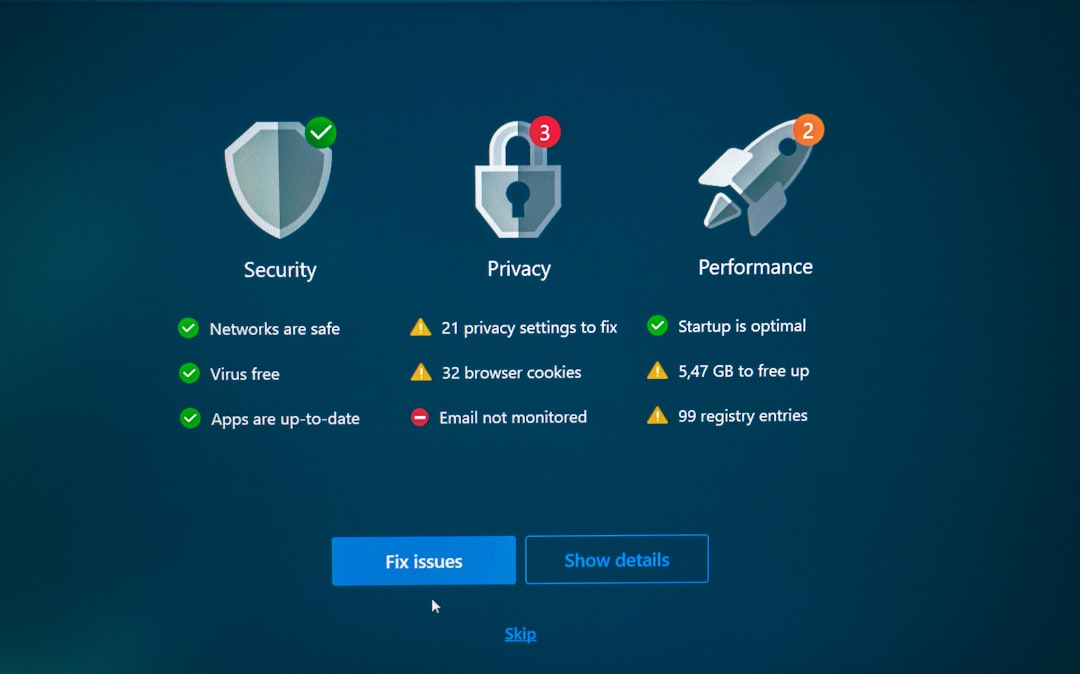
Your torrent client should now show an active or “green” network status if port configuration is correct.
Advanced Security Measures for Extra Protection
If you are concerned about exposure—even with proper firewall rules—consider adding layered protections:
- Intrusion Detection System (IDS) monitoring
- Separate torrent device isolated from main workstation
- Network segmentation via VLAN
- Regular malware scans
These measures maintain security discipline while allowing tracker functionality.
Should You Ever Fully Disable a Firewall for MyAnonamouse?
The direct answer is no. There is no scenario where completely removing firewall protection is the responsible long-term solution. Nearly every connectivity issue related to MyAnonamouse can be resolved through:
- Targeted exceptions
- Port forwarding
- VPN compatibility adjustments
- Client configuration tuning
Security should never be sacrificed for minor convenience, especially in environments involving peer-to-peer networking.
Final Thoughts
Accessing MyAnonamouse effectively doesn’t require dismantling your digital safeguards. It requires understanding them. Modern firewalls are highly configurable tools—not obstacles. By creating precise rules, limiting exposure to necessary ports, and maintaining layered protection strategies, you can preserve both access and defense.
Responsible configuration ensures you remain connected to your tracker community without unnecessarily inviting risk. In cybersecurity, measured adjustments always outperform blanket shutdowns.
Your goal should not be to disable your firewall—it should be to refine it.