
PC screen distortion can appear as flickering, stretched images, strange colors, vertical lines, tearing, ghosting, or a display that looks warped and unstable. Although the symptoms may seem alarming, the cause is often traceable to a specific software setting, loose cable, driver problem, overheating component, or failing piece of hardware. A careful troubleshooting process helps identify whether the issue comes from the monitor, graphics card, cable, operating system, or the computer itself.
TLDR: Screen distortion on a PC is commonly caused by incorrect resolution settings, outdated graphics drivers, loose display cables, overheating, monitor faults, or graphics card problems. Basic fixes include restarting the system, checking cables, updating drivers, adjusting display settings, and testing another monitor or port. If distortion appears before the operating system loads or continues across multiple displays, hardware failure becomes more likely. A structured check can prevent unnecessary repairs and help determine whether professional service is needed.
Common Signs of PC Screen Distortion
Screen distortion does not always look the same. In some cases, the image may flicker only when the system is under load. In others, the monitor may show colored lines, blocks, waves, or random pixels. A distorted screen may also appear stretched, blurry, tinted, or split into sections.
Some of the most common symptoms include:
- Horizontal or vertical lines across the display
- Flickering during normal use or gaming
- Screen tearing, where parts of the image appear misaligned
- Color distortion, such as green, purple, or washed-out tones
- Blurred or stretched images caused by incorrect resolution
- Random artifacts, blocks, or pixel noise
- Blackouts or intermittent signal loss
Because these signs can overlap, the problem should not be diagnosed from appearance alone. A practical approach compares when the distortion happens, what parts of the system are involved, and whether the fault changes when cables, ports, or monitors are swapped.
Software and Display Setting Causes
One of the simplest causes of screen distortion is an incorrect display configuration. When a PC runs at a resolution that does not match the monitor’s native resolution, the image may appear blurry, stretched, cropped, or uneven. Similarly, using the wrong refresh rate can cause flickering, black screens, or unstable visuals.
A technician or user would typically inspect the operating system’s display settings first. The monitor should be configured to its native resolution, such as 1920 x 1080, 2560 x 1440, or 3840 x 2160, depending on the panel. The refresh rate should also match what the monitor supports, such as 60 Hz, 75 Hz, 144 Hz, or higher.
Scaling settings can also create visual problems. If text or windows look unusually large, soft, or oddly spaced, display scaling may be set too high or too low. This is especially common after connecting a laptop to an external monitor or switching between multiple displays.
Graphics Driver Problems
Graphics drivers control communication between the operating system and the graphics hardware. If a driver is outdated, corrupted, incompatible, or recently updated with a faulty version, screen distortion may occur. Driver-related issues can cause flickering, artifacts, crashes, black screens, and poor performance in games or video applications.
The most effective fix is to update the graphics driver from the hardware manufacturer rather than relying only on automatic operating system updates. For systems using NVIDIA, AMD, or Intel graphics, the latest stable driver should be downloaded from the official manufacturer source. If distortion started immediately after a driver update, rolling back to a previous version may solve the problem.
In more stubborn cases, a clean driver installation may be necessary. This removes older driver files and resets graphics settings that could be causing conflicts. A clean installation is particularly useful when a PC has changed graphics cards or has accumulated multiple driver versions over time.
Cable, Port, and Connection Issues
A surprisingly large number of screen distortion problems come from faulty or loose cables. HDMI, DisplayPort, DVI, and VGA cables can all produce visual issues when damaged, poorly seated, or unable to handle the required bandwidth. A cable that works at 1080p 60 Hz may fail at 1440p 144 Hz or 4K 120 Hz.
Common cable-related symptoms include intermittent blackouts, flickering, sparkles, color shifts, or temporary signal loss. The cable should be firmly connected at both the PC and monitor. If the issue continues, another cable should be tested. For high-refresh or high-resolution displays, a certified DisplayPort or HDMI cable that supports the required standard is recommended.
Ports can also fail or become dirty. Testing a different port on the graphics card or monitor helps reveal whether a specific connector is damaged. If a PC has both integrated graphics and a dedicated graphics card, the monitor should normally be connected to the graphics card ports rather than the motherboard ports, unless integrated graphics are being used intentionally.
Monitor Problems
The monitor itself may be the source of distortion. Aging panels, failing backlights, damaged internal boards, and faulty power supplies can all create display problems. A monitor with internal failure may show lines, flickering, color patches, or image retention even when connected to different computers.
A simple test involves connecting the monitor to another PC, laptop, or gaming console. If the same distortion appears on a different device, the monitor is likely responsible. Many monitors also have an on-screen menu. If the menu itself appears distorted, the issue is usually inside the monitor rather than the computer or cable.
Factory resetting the monitor can sometimes help if the problem comes from incorrect picture modes, overdrive settings, adaptive sync problems, or unusual color profiles. However, permanent lines, large discolored areas, or repeated signal failures often indicate a hardware fault that may require repair or replacement.
Graphics Card and GPU Hardware Faults
When distortion includes random artifacts, colored blocks, checkerboard patterns, or crashes during gaming, the graphics card becomes a major suspect. A failing GPU or faulty video memory can produce severe visual corruption. These symptoms may worsen when the system is under heavy load, such as during gaming, rendering, or video editing.
Overheating is another common GPU-related cause. Dust buildup, poor airflow, old thermal paste, or failing fans can cause the graphics card to reach unsafe temperatures. When overheating occurs, the PC may show artifacts, throttle performance, crash, or shut down unexpectedly.
Temperature monitoring software can help determine whether the GPU is running too hot. While acceptable temperatures vary by model, unusually high temperatures under moderate load are a warning sign. The inside of the PC should be checked for dust, blocked vents, and non-spinning fans. If a graphics card has visible damage, swollen components, burning smells, or persistent artifacts across multiple monitors and cables, professional diagnosis is recommended.
Memory, Power, and Motherboard Issues
Although display distortion often points to the monitor or GPU, other components can also be involved. Faulty system memory may cause graphical glitches, crashes, and corrupted visuals. A weak or failing power supply can cause the graphics card to behave unpredictably, especially under load. Motherboard slot problems may also interfere with proper GPU operation.
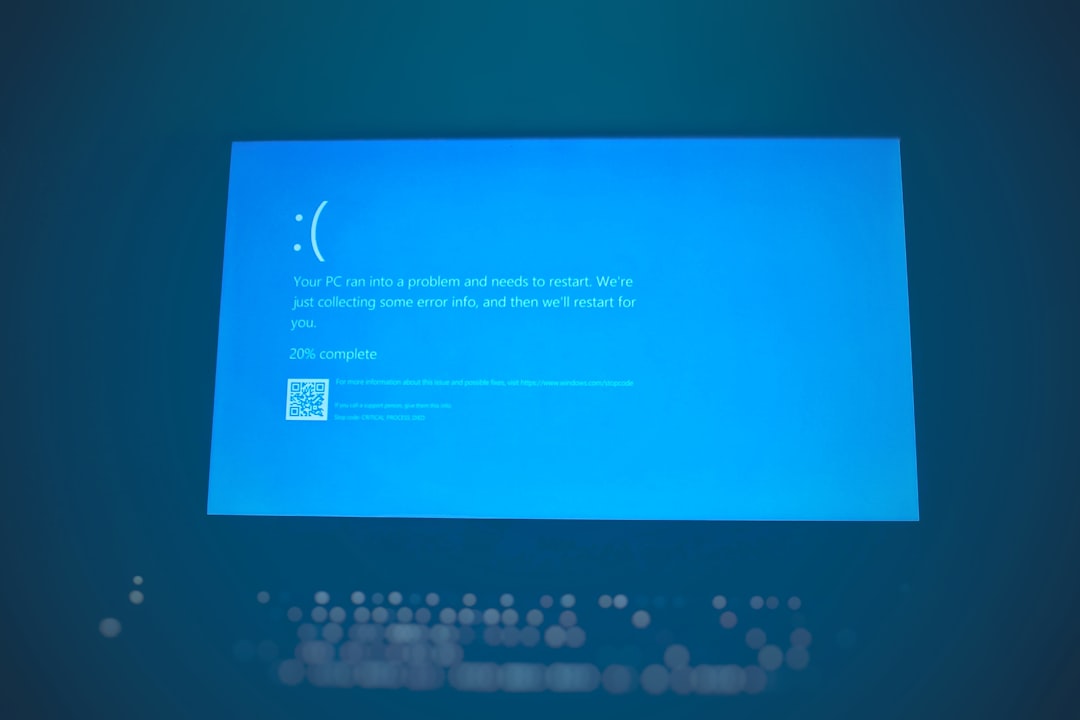
If distortion appears along with random restarts, blue screen errors, application crashes, or clicking power supply noises, the problem may extend beyond the display system. Memory tests, power supply checks, and motherboard inspection may be needed. Reseating the graphics card and RAM can sometimes resolve issues caused by poor contact or vibration over time.
A technician may also test the graphics card in another compatible PC. If the same distortion follows the card, the GPU is likely faulty. If the card works normally elsewhere, the original system may have a motherboard, power, driver, or configuration issue.
Step-by-Step Fixes to Try
A logical troubleshooting order reduces guesswork. The easiest and least expensive checks should be completed before replacing hardware.
- Restart the PC: Temporary driver or system glitches may clear after a restart.
- Check the cable: Reseat the display cable and test a different cable if possible.
- Try another port: Switch from one HDMI or DisplayPort connector to another.
- Verify resolution and refresh rate: Set the display to its native resolution and supported refresh rate.
- Update or roll back drivers: Install a stable graphics driver or revert if the issue began after an update.
- Test another monitor: This helps separate PC problems from monitor problems.
- Check temperatures: Monitor GPU and CPU temperatures during normal use and under load.
- Inspect internal hardware: Look for dust, loose cards, stopped fans, or damaged components.
- Boot into safe mode: If distortion disappears, software or driver conflict is more likely.
- Test before Windows loads: Distortion in BIOS or startup screens often suggests hardware trouble.
When Professional Repair Is Needed
Professional service is advisable when distortion persists across different monitors, cables, ports, and driver versions. Hardware repair may also be necessary if the screen shows artifacts before the operating system loads, if the GPU overheats despite cleaning, or if the monitor displays distorted menus from its own built-in controls.
For laptops, screen distortion can involve additional parts such as the display ribbon cable, hinge area, internal panel, or integrated graphics hardware. If moving the lid changes the distortion, the internal cable or panel connection may be damaged. Laptop display repairs are more delicate than desktop monitor swaps and are usually best handled by a qualified technician.
Preventing Future Screen Distortion
Preventive care can reduce the chances of future display issues. The system should be kept clean, well-ventilated, and updated with stable drivers. Display cables should not be bent sharply or pulled tightly. High-resolution and high-refresh monitors should use cables rated for the required bandwidth.
It is also wise to avoid excessive overclocking. GPU overclocks, unstable memory settings, and aggressive monitor refresh rate overclocks can all cause flickering or artifacts. If distortion begins after an overclock, returning to default settings is one of the first recommended fixes.
FAQ
What causes colored lines on a PC screen?
Colored lines can be caused by a loose cable, damaged monitor panel, faulty graphics driver, overheating GPU, or failing graphics card. Testing another cable and monitor helps narrow the cause.
Can a bad HDMI or DisplayPort cable cause distortion?
Yes. A damaged or low-quality cable can cause flickering, sparkles, blackouts, color problems, and unstable images, especially at high resolutions or refresh rates.
Why does screen distortion happen only while gaming?
Gaming places heavy load on the GPU. Distortion during games may indicate overheating, unstable overclocking, driver problems, insufficient power, or a failing graphics card.
Is screen distortion always a hardware problem?
No. Many cases come from software issues such as incorrect resolution, refresh rate mismatches, corrupted drivers, or scaling settings. Hardware becomes more likely when the issue appears across multiple devices or before the operating system loads.
How can someone tell if the monitor is faulty?
The monitor may be faulty if distortion appears when connected to another computer, or if the monitor’s own on-screen menu is distorted. A factory reset may be tried, but persistent lines or color patches often indicate panel or internal board failure.
Can overheating damage the graphics card permanently?
Prolonged overheating can shorten a graphics card’s lifespan and may eventually cause permanent damage. Cleaning dust, improving airflow, and confirming fan operation can help prevent heat-related distortion.
Should the graphics driver be updated first?
Driver updates are a good early step, but cable and display setting checks are usually even faster. If distortion began after a recent update, rolling back the driver may be more effective than updating again.
When should the PC be taken to a repair technician?
Repair service is recommended when distortion remains after testing cables, ports, monitors, drivers, and temperatures, or when there are signs of GPU failure, laptop cable damage, power instability, or monitor hardware failure.