
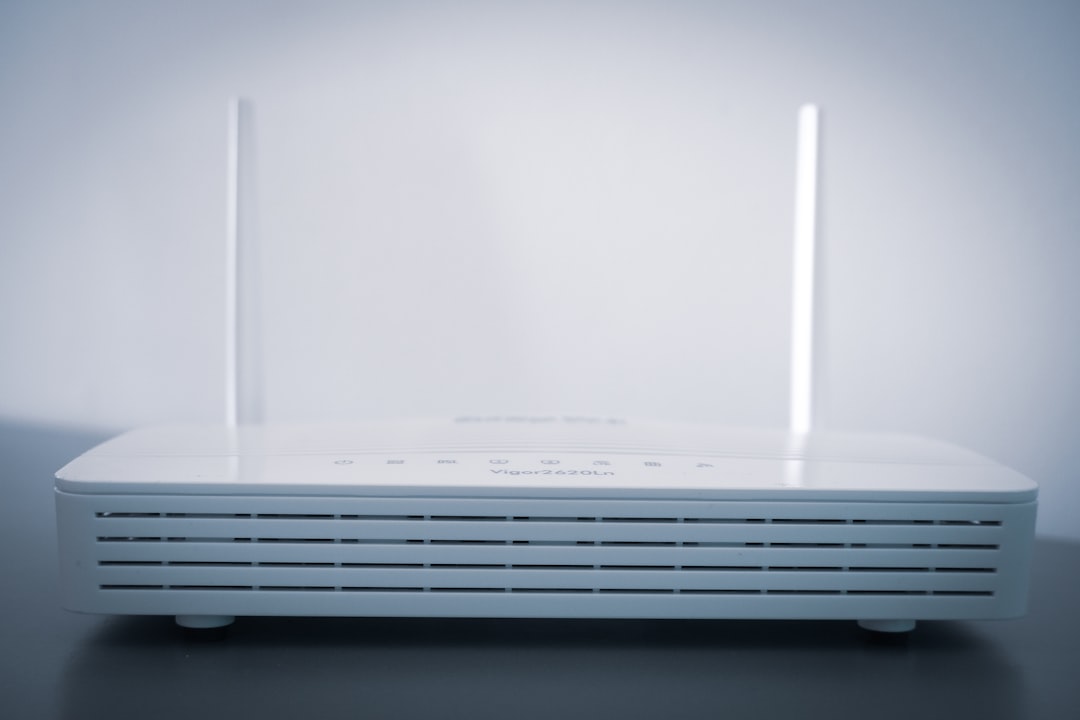
Opening a port on a router allows specific internet traffic to reach a device inside a home or office network. This process, commonly called port forwarding, is often used for online gaming, remote desktop access, security cameras, home servers, file sharing, and certain business applications. When done carefully, it can make a service accessible from outside the local network without exposing every device connected to the router.
TLDR: To open a port on a router, a user must find the device’s local IP address, log in to the router admin panel, and create a port forwarding rule. The rule should include the port number, protocol, and local IP address of the device receiving the traffic. After saving the settings, the user should test the port from outside the network. For security, only necessary ports should be opened, and router firmware should remain updated.
What Does Opening a Port Mean?
A router acts like a gatekeeper between the internet and the devices on a private network. By default, most routers block unsolicited incoming traffic to protect computers, phones, smart devices, and servers from unwanted access. When a port is opened, the router is instructed to send certain traffic to a specific internal device.
For example, a game server might need traffic on port 25565, while a web server might use port 80 for HTTP or 443 for HTTPS. The port number tells the router which type of traffic should be directed to which device.
Opening a port does not simply make the internet faster. Instead, it creates a pathway for a particular service or application to communicate properly across the internet.
Before Opening a Port
Before changing router settings, the user should gather a few important details. Having this information ready makes the process easier and reduces the chance of mistakes.
- The device’s local IP address: This is the internal address of the computer, console, camera, or server that needs the open port.
- The port number: The application or service documentation usually lists the required port.
- The protocol: The port may use TCP, UDP, or both.
- Router login details: The router admin username and password are required.
- Public IP awareness: If the user is behind carrier grade NAT or a double router setup, port forwarding may not work without extra steps.
It is also wise to set a static local IP address for the target device. If the device’s IP address changes later, the forwarding rule may point to the wrong device and stop working. This can usually be done in the router’s DHCP reservation settings.
Step 1: Find the Device’s Local IP Address
The first step is identifying the local IP address of the device that will receive incoming traffic. On a Windows computer, this can be found by opening Command Prompt and typing ipconfig. The address usually appears as an IPv4 address, such as 192.168.1.25 or 192.168.0.42.
On macOS, the address can be found in the network settings. On a game console, security camera, or smart device, it is usually listed in the device’s network information screen. The router’s connected device list may also show all devices and their assigned IP addresses.
Step 2: Log In to the Router
Next, the user must access the router’s admin panel. This is usually done through a web browser by entering the router’s local address. Common router addresses include:
- 192.168.1.1
- 192.168.0.1
- 10.0.0.1
If the address is unknown, the router’s gateway address can usually be found in the network settings of a connected device. The user then enters the router username and password. If the default login has never been changed, it may be printed on a label attached to the router or listed in the manual.
Important: If the router still uses its default admin password, it should be changed before opening any ports. A weak router password can create a serious security risk.
Step 3: Locate the Port Forwarding Section
Router menus vary by brand and model, but port forwarding settings are often found under names such as:
- Port Forwarding
- Virtual Server
- NAT Forwarding
- Applications and Gaming
- Firewall Rules
- Advanced Settings
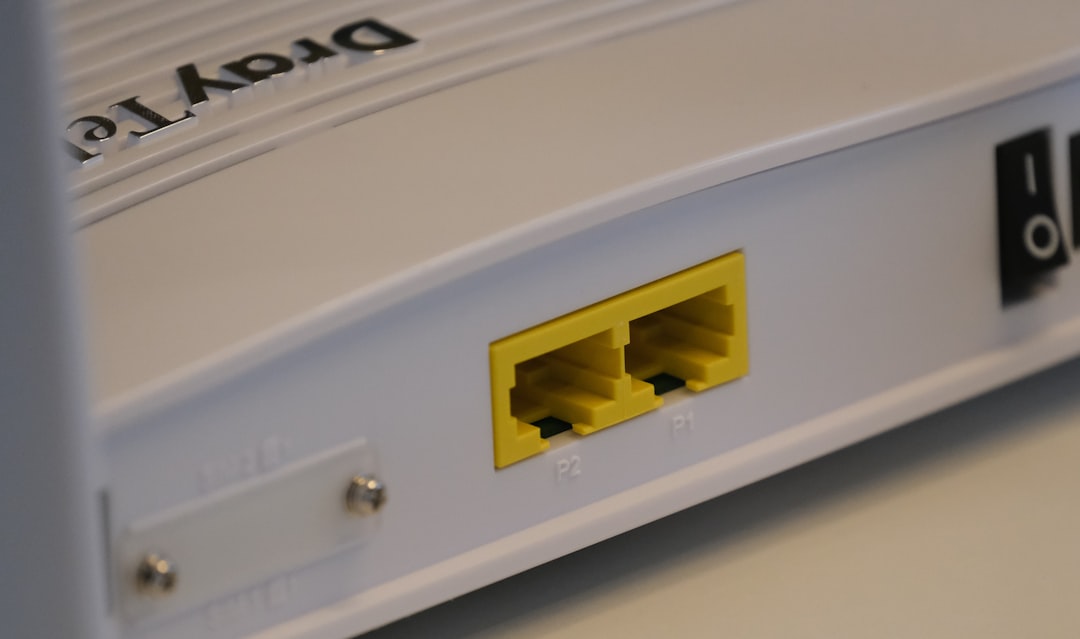
Once the correct section is found, the user can create a new rule. Some routers provide a simple form, while others ask for more detailed information. The required fields usually include a service name, internal IP address, internal port, external port, and protocol.
Step 4: Create the Port Forwarding Rule
The user should create a rule that points the required port to the device’s local IP address. A typical rule might look like this:
- Service name: Game Server
- Device IP address: 192.168.1.25
- External port: 25565
- Internal port: 25565
- Protocol: TCP, UDP, or both
In many cases, the internal and external port numbers are the same. However, some advanced setups use a different external port for security or organization. After the information is entered, the user should save or apply the changes. Some routers may restart automatically, while others may apply the rule without rebooting.
Step 5: Test the Open Port
After saving the forwarding rule, the user should test whether the port is reachable from outside the local network. Testing from inside the same network may give misleading results because some routers do not support loopback connections.
A reliable test can be performed by using a device connected to mobile data or another internet connection. Online port checking tools can also test whether a public IP address has a specific port open. However, the application or service using that port must be running during the test. If the service is turned off, the port may appear closed even if the forwarding rule is correct.
Common Problems and Troubleshooting
If the port does not open successfully, several issues may be responsible. The user should check the following:
- Wrong local IP address: The forwarding rule may point to an old or incorrect device address.
- Incorrect protocol: Some services require UDP, not TCP, or both protocols.
- Firewall blocking traffic: The device’s operating system firewall may block the connection even if the router allows it.
- Double NAT: If a modem router and a separate router are both performing NAT, the port may need forwarding on both devices.
- Carrier grade NAT: Some internet service providers do not assign a true public IP address, which prevents normal port forwarding.
- Service not running: The port will not appear open unless an application is actively listening on it.
If carrier grade NAT is the problem, the user may need to ask the internet service provider for a public IP address. In some cases, alternatives such as VPN tunneling, reverse proxy services, or cloud hosting may be better options.
Security Considerations
Opening a port can expose a device or service to the internet, so security should be treated seriously. The safest approach is to open only the ports that are absolutely necessary and to close them when they are no longer needed.
- Use strong passwords for any service accessible through the open port.
- Keep software updated on the router and target device.
- Avoid opening risky ports unless there is a clear reason and proper protection.
- Disable unused forwarding rules to reduce exposure.
- Use encryption whenever possible, especially for remote access.
Remote desktop, file transfer, and camera systems are frequent targets for attackers when poorly secured. If remote access is needed, a VPN is often safer than exposing sensitive services directly to the internet.
FAQ
What is port forwarding?
Port forwarding is a router feature that sends incoming internet traffic on a specific port to a chosen device inside a private network.
Is opening a port safe?
It can be safe when done carefully, but it does increase exposure. The user should open only necessary ports, use strong passwords, and keep devices updated.
Why does the port still show as closed?
The service may not be running, the wrong protocol may be selected, the local firewall may be blocking traffic, or the network may be behind double NAT or carrier grade NAT.
Does port forwarding improve internet speed?
No. Port forwarding does not increase bandwidth or general internet speed. It only allows specific incoming connections to reach a device.
Should TCP or UDP be selected?
That depends on the application. Some services require TCP, others require UDP, and some need both. The user should check the application’s documentation.
Can a port be opened without router access?
Usually not. Router admin access is normally required. If the user does not control the router, the network administrator or internet service provider may need to make the change.