
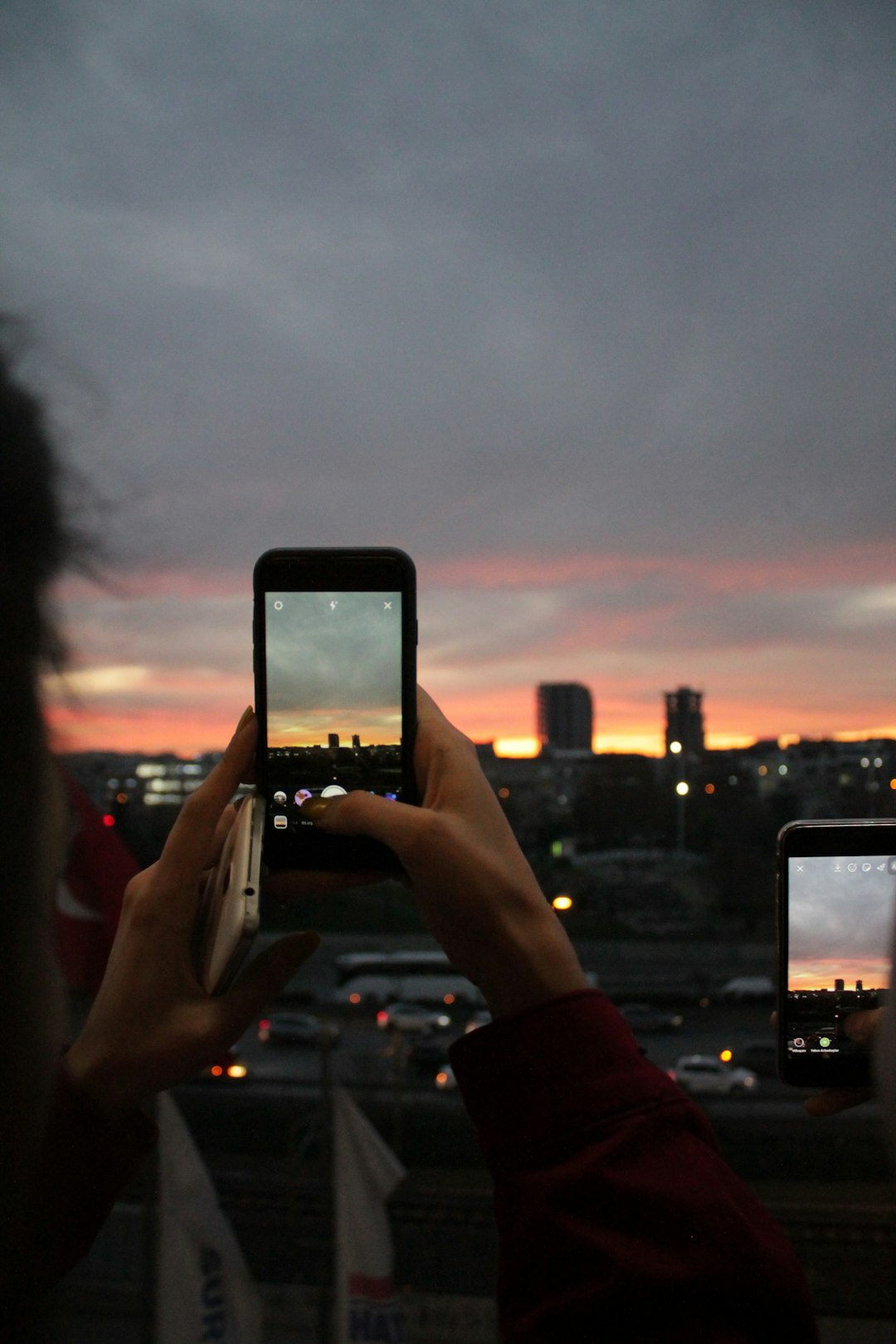
Pick Lapse It if you want to shoot a time-lapse on your phone. Pick Time Lapse Creator if you already have a folder full of photos on a Windows PC. That is the simple answer. A 30-second time-lapse at 30 frames per second needs about 900 photos, so the right tool can save a lot of tapping and sighing [source: Adobe].
TLDR: Use Lapse It for shooting sunsets, clouds, plants, traffic, desk builds, and travel clips straight from a phone. Use Time Lapse Creator when you have 500 to 2,000 photos from a camera and want to turn them into one video on Windows. For example, if you shoot one photo every 5 seconds for 2 hours, you get 1,440 photos, which becomes a 48-second video at 30 fps. Lapse It is better for capture; Time Lapse Creator is better for assembly.
What is a camera time-lapse?
A time-lapse is a video made from photos taken over time. You shoot slowly. Then you play it back fast.
Clouds race. Shadows crawl. A flower opens like it has somewhere to be. It feels a bit like cheating time.
The trick is simple:
- Take many photos.
- Use the same angle.
- Keep the camera still.
- Turn the photos into a video.
The app choice matters because time-lapse work gets boring fast. Renaming files, setting frame rates, and fixing shaky shots is not glamorous. Honestly, it feels like software was invented just to hide one button you need.
Lapse It: best for phone-first time-lapse
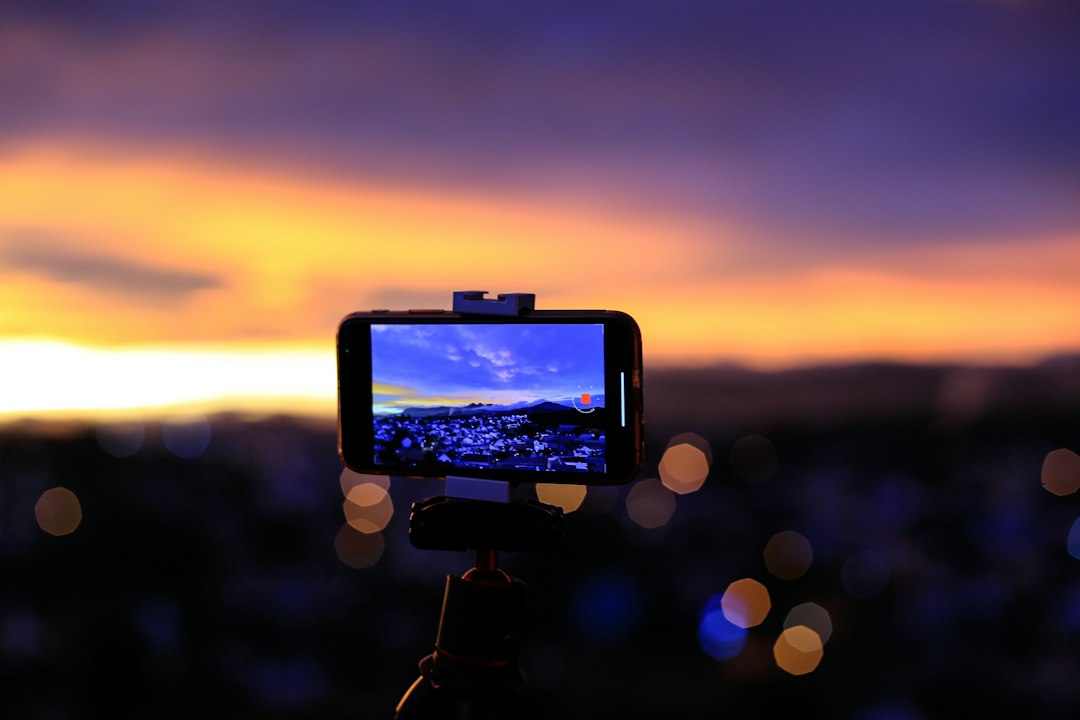
Lapse It is made for people who want to capture and create in one place. It is a mobile app. You can shoot with your phone, set the interval, preview the clip, and export it.
That makes it friendly for quick projects. Set the phone on a small tripod. Pick an interval. Tap record. Walk away. Try not to bump the table.
Good uses for Lapse It:
- Sunset videos.
- Cloud movement.
- Drawing or painting videos.
- Food cooking clips.
- Plant growth tests.
- Desk setup videos.
The best part is capture control. You can choose how often the app takes a shot. Every 1 second gives smooth motion. Every 10 seconds works well for slow clouds. Every minute is better for plants or long builds.
Lapse It also helps when you do not want to touch a laptop. That is a real win. You shoot, trim, add music if needed, and export. Done.
The annoying part? Phones overheat. Batteries drain. Notifications pop up at the worst possible time. A two-hour shoot can die at 87 minutes because your phone got hot on a sunny window ledge. That one hurts.
Time Lapse Creator: best for photo folders
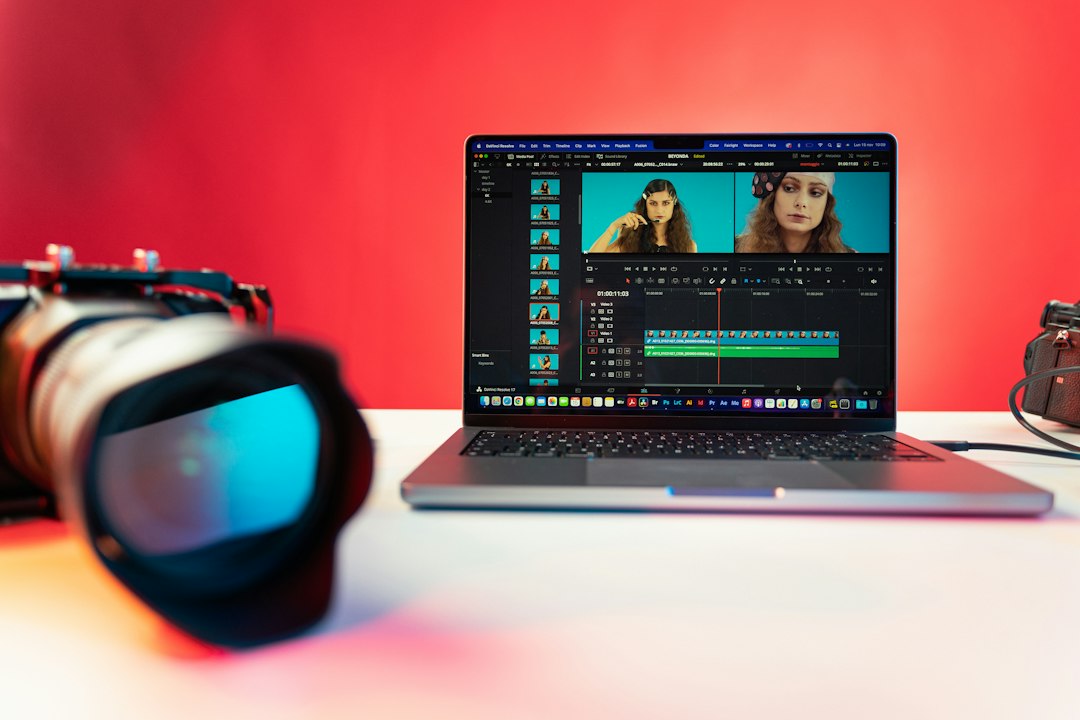
Time Lapse Creator is more useful when the shooting is already done. Think DSLR. Mirrorless camera. Action camera. Webcam. Security camera. You have a folder with hundreds of photos. Now you need a video.
This tool is usually the better pick for desktop work. You import images, choose a frame rate, set the output, and render. Simple. Clean. Less fiddly than trying to force a phone app to handle a huge folder.
Good uses for Time Lapse Creator:
- DSLR time-lapse sequences.
- Construction progress photos.
- Long camera projects.
- Product build videos.
- Folders exported from an action camera.
If you used a real camera, this workflow feels saner. Real cameras have better lenses. Bigger sensors. Longer battery options. They also let you use an intervalometer, which is a small timer that tells the camera when to shoot.
The catch is file handling. Expect to waste time on boring stuff. Missing photos. Wrong file names. One random blurry frame. A folder sorted by date instead of name. Yes, it can add 10 minutes to a job that should take two.
Quick comparison: Lapse It vs. Time Lapse Creator
| Feature | Lapse It | Time Lapse Creator |
|---|---|---|
| Best device | Phone or tablet | Windows PC |
| Main job | Capture and export | Turn photos into video |
| Best for beginners | Yes | Yes, if photos are ready |
| Best image quality | Good | Depends on camera photos |
| Big project handling | Okay | Better |
How to create a time-lapse with Lapse It
Use Lapse It when you want the fastest path. It is great for “I want this now” moments.
- Clean your lens. Do it. Finger grease ruins everything.
- Put the phone on a tripod. A mug and rubber band can also work. Not fancy. Very real.
- Open Lapse It.
- Set the interval. Try 2 seconds for people moving. Try 5 seconds for clouds.
- Lock exposure and focus. This stops flicker.
- Start recording.
- Do not touch the phone. Seriously. Hands off.
- Preview the result.
- Export the video.
For a sunset, start with one photo every 5 seconds. Shoot for 60 minutes. That gives 720 photos. At 30 fps, your final video is 24 seconds long. Nice and snappy.
How to create a time-lapse with Time Lapse Creator
Use Time Lapse Creator when your camera already did the hard part.
- Copy all photos to one folder.
- Sort them by file name.
- Delete obvious mistakes. Blurry frames stand out.
- Open Time Lapse Creator.
- Import the image folder.
- Choose frame rate. Start with 24 or 30 fps.
- Pick resolution. Use 1080p for easy sharing.
- Render the video.
If the video feels too fast, lower the fps. If it feels too slow, raise it. Tiny changes matter. Going from 24 fps to 30 fps makes a clip about 20% shorter.
Which one should you choose?
Choose Lapse It if:
- You want to shoot on a phone.
- You need a quick social video.
- You do not want to move files around.
- You are making short clips under 2 hours.
Choose Time Lapse Creator if:
- You already have photos.
- You used a DSLR or mirrorless camera.
- You have a big project with hundreds of files.
- You want more control on a bigger screen.
For most beginners, Lapse It is easier. It teaches the whole process in one place. For better image quality, Time Lapse Creator wins if your source photos are sharp and well exposed.
Simple settings that usually work
Do not overthink settings at first. Use these starter options:
- Fast action: 1 photo every 1 second.
- People walking: 1 photo every 2 seconds.
- Clouds: 1 photo every 5 seconds.
- Sunset: 1 photo every 5 to 10 seconds.
- Plants: 1 photo every 10 to 30 minutes.
- Final video: 24 or 30 fps.
Final pick
Lapse It is the fun pick. It is fast, mobile, and easy to learn. Use it when the phone is your camera and editor.
Time Lapse Creator is the practical pick. It is better for folders, cameras, and longer projects. Use it when quality and file control matter more than speed.
The best time-lapse app is the one that matches your shoot. Phone in hand? Use Lapse It. Memory card full of photos? Use Time Lapse Creator. Either way, lock the camera down, set the interval, and let time do the cool part.