
Plug in the USB floppy drive, let Windows 11 detect it, and copy the files off the disk before you try anything fancy. That is the safest path. Most USB floppy drives work as simple removable storage in Windows, thanks to built-in USB support [source: Microsoft]. If the disk clicks, stalls, or asks to be formatted, stop clicking around like a raccoon in a toolbox.
TLDR: Windows 11 can often read a USB floppy drive with no extra driver. A normal 3.5 inch floppy holds only about 1.44 MB, so one disk may take seconds to copy, but a box of 80 disks can still eat your afternoon. For example, if an office archive has 60 old diskettes, that is around 86 MB at most, yet the real work is finding which ones still read. Copy first, recover second, and never format when Windows asks.
What You Need
Good news. You do not need a beige tower from 1998. You need a few simple things.
- A USB floppy drive, usually for 3.5 inch disks.
- A Windows 11 PC with a working USB port.
- Old diskettes, handled gently.
- A folder for saved files, such as C:\Recovered Floppies.
- Optional recovery software, if normal copying fails.
Try to use a known brand USB floppy drive if you can. Cheap mystery drives can work. They can also act like tired hamsters. Honestly, it feels like some of them need three dramatic pauses before showing a file list.
Step 1: Connect the Drive
Plug the USB floppy drive into the PC. Wait about 10 to 30 seconds. Windows 11 should make the classic device sound. The drive may appear as USB Floppy Disk Drive or as drive letter A:.
Open File Explorer. Click This PC. Look for the floppy drive. If you see it, great. Do not celebrate too hard yet. The disk still has to read.
If nothing appears, try this:
- Use another USB port.
- Avoid USB hubs at first.
- Restart Windows with the drive plugged in.
- Check Device Manager for errors.
- Try the drive on another computer.
To open Device Manager, right click the Start button. Pick Device Manager. Look under Disk drives and Universal Serial Bus controllers. If you see a warning icon, uninstall the device, unplug it, restart, then plug it in again.
Step 2: Test With a Non Precious Disk
Do not start with the disk labeled Grandma poems final final 1997. Start with a less important disk. Old media can crumble, jam, or confuse the drive.
Insert the disk. Wait. Open the drive in File Explorer. If you see files, copy them to your recovery folder right away.
Do not edit files directly on the floppy. Do not rename them there. Do not save back to the disk. Treat it like a cookie from an ancient tomb. Look, but do not poke.
Step 3: Copy the Data the Safe Way
Create a folder for each disk. Use simple names.
- Disk 01 Taxes 1998
- Disk 02 School Stuff
- Disk 03 Unknown Label
Then copy everything from the floppy into that folder. Keep the original file names. If Windows pauses, wait. Floppy drives are slow. That is normal. If it hangs for several minutes, cancel gently and try again later with recovery software.
It drives me crazy that Windows may say You need to format the disk when it really means I cannot read this right now. Do not format it. Formatting can wipe the file table and make recovery harder.
Common Problems and Plain Fixes
- The drive clicks. Remove the disk. Try another disk. If all disks click, the drive may be bad.
- Windows asks to format. Click Cancel. Try recovery tools.
- Files copy with errors. Copy one file at a time. Start with the most valuable files.
- The disk is not recognized. It may be Mac, Amiga, Atari, or another format.
- The disk smells musty. Be careful. Mold can damage the drive.

How to Recover Files From a Bad Floppy
If normal copying fails, stop using File Explorer for that disk. Use recovery software that can read weak sectors and retry them.
Try these options:
- Roadkil’s Unstoppable Copier: old, simple, and useful for stubborn files.
- IsoBuster: good for damaged media and strange file systems.
- WinImage: useful for making floppy disk images.
- HxC tools: handy for disk image work and vintage formats.
The best first move is often to create a disk image. This is a full copy of the floppy saved as one file. Then you can recover from the image instead of grinding the original disk again and again.
Think of it like photocopying an old map. Work from the copy. Keep the original safe.
Make a Disk Image
Use a tool like WinImage. Insert the floppy. Open the tool. Choose the option to read the disk into an image file. Save it as something clear, such as Disk01.img.
If the image creation fails, try again with fewer retries if the drive sounds rough. Some disks will get worse with each pass. That is annoying, but true. Expect to waste time on the one disk with the most exciting label. That is how old tech likes to mess with us.
What If the Disk Is Not From Windows?
This is where things get spicy. A USB floppy drive usually reads standard PC 1.44 MB disks. It may not read all old formats.
Watch for these cases:
- Mac 800K disks: many USB floppy drives cannot read them.
- Amiga disks: usually need special hardware.
- Atari ST disks: some are readable, some are not.
- 720K PC disks: many drives can read them, but not all.
- 5.25 inch disks: USB 3.5 inch drives cannot read these at all.
For rare formats, you may need a vintage computer, a special controller, or a service that handles old media. Tools like Greaseweazle or KryoFlux can help capture unusual disk formats, but they are more hobby lab than kitchen table.
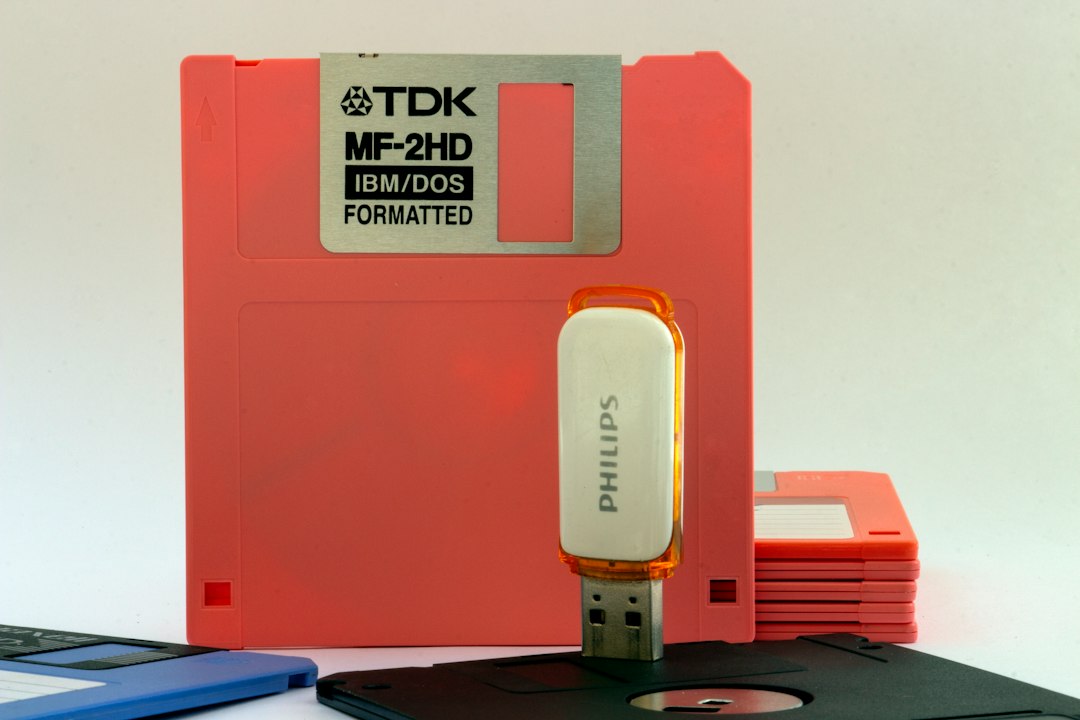
Keep the Files Safe After Recovery
Once the files are copied, back them up. Do it right away. Old files have already survived long enough.
Use the 3 copy rule:
- One copy on your PC.
- One copy on an external drive.
- One copy in cloud storage.
Open the files too. Some may need old software. WordPerfect files, Lotus spreadsheets, and ancient database files can look like alphabet soup in modern apps. LibreOffice can open many old document types. For very weird files, search by the file extension.
Safety Tips for Old Diskettes
- Hold disks by the plastic shell.
- Keep them away from magnets.
- Do not slide open the metal shutter unless you must.
- Do not use dirty or moldy disks in your only drive.
- Label recovered folders, not the old disk.
If a disk is very valuable, do not keep retrying it for hours. Each read can wear it down. A data recovery shop may be cheaper than losing the only copy of a novel, payroll record, or family letter.
Quick Checklist
- Plug in the USB floppy drive.
- Check for drive A: in File Explorer.
- Test with a low value disk.
- Copy files to a folder on your PC.
- Cancel any format prompt.
- Use recovery software for bad disks.
- Make disk images when possible.
- Back up recovered files in three places.
USB floppy recovery with Windows 11 is not glamorous. It is part treasure hunt, part patience test. Still, when an old disk finally opens and shows photos, stories, invoices, or games from decades ago, it feels like pulling a tiny time capsule out of a plastic square.