
Use private browsing for quick cleanup, not true invisibility. Chrome calls it Incognito Mode. Safari and Firefox call it Private Browsing. They all erase local history after you close the private window, but Chrome is still the browser most people will compare against, with about 65% global browser market share [source: StatCounter].
TLDR: Incognito Mode and Private Browsing are mostly the same idea with different names. They hide your activity from other people using the same device, not from websites, schools, bosses, or internet providers. Example: if you shop for a birthday gift in a private window, the next person on your laptop should not see it in your history. But the store may still know you visited, especially if you log in.

What private browsing actually does
Private browsing is like using a clean guest room. You walk in. You do your thing. You leave. The room gets tidied up.
Most private modes delete these things when you close the private window:
- Browsing history from that private session.
- Search history saved by the browser.
- Cookies from that private window.
- Site data, like temporary login bits.
- Form entries, in many cases.
That sounds magical. It is not. It does not make you a ghost. Honestly, it feels like browser names oversell this feature a bit.
What it does not hide
This is the part people miss.
Private browsing does not hide your activity from:
- Your internet provider.
- Your employer on a work network.
- Your school Wi Fi.
- The websites you visit.
- Search engines, if you are signed in.
- Downloads saved to your device.
- Bookmarks you create.
If you log into YouTube in a private window, YouTube still knows it is you. If you download a PDF, that file may stay on your computer. Annoying? Yes. Logical? Also yes.
Chrome Incognito Mode
Chrome’s private mode is called Incognito. It is the famous one. The little hat and glasses icon makes it feel sneaky. Very spy movie. Very not actually spy movie.
Chrome Incognito is good for simple tasks:
- Checking how a website looks when you are logged out.
- Shopping without filling your normal cookies with ads.
- Signing into a second account for five minutes.
- Testing search results without some saved browser history.
The catch is that Chrome is still made by Google. If you sign into Google services, your activity can still connect to your account. Incognito mainly protects the device history. It does not wipe the internet’s memory.
Best for: quick sessions, shared laptops, account testing, and shopping checks.
Safari Private Browsing
Safari’s Private Browsing feels more polished, especially on Apple devices. It fits nicely into iPhone, iPad, and Mac use. Apple also adds privacy tools across Safari, not just inside private windows.
Safari blocks many trackers by default. Its private windows also try to reduce tracking between sites. On newer Apple devices, private tabs can be protected with Face ID, Touch ID, or your device password. That is handy. It stops nosy friends from opening your tabs while “just checking the weather.” Sure, Steve.
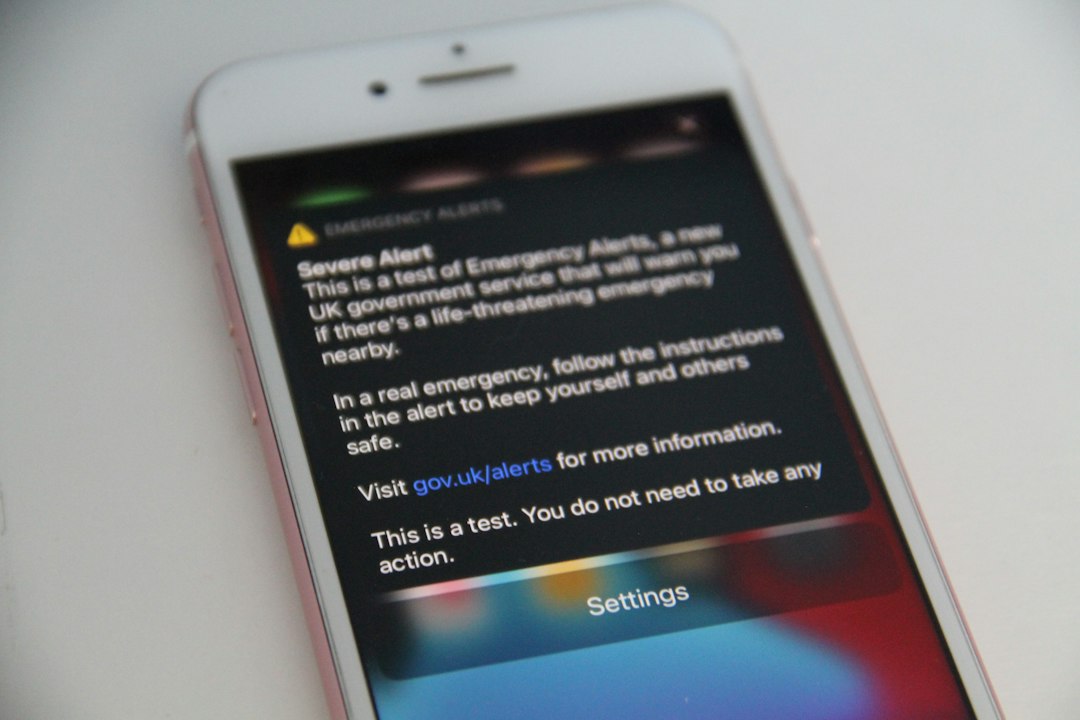
Safari can be a little confusing, though. Private tabs may stay open until you close them. So do not assume they vanish just because you switched apps. Check your tabs. Close them if needed.
Best for: Apple users, mobile privacy, tracker blocking, and keeping private tabs away from casual snoops.
Firefox Private Browsing
Firefox Private Browsing is the nerdy friend who actually read the privacy menu. It blocks many trackers and uses strong privacy features by default. Firefox also has settings for stricter protection if you want more control.
Firefox is great if you dislike ad trackers following you from one site to another. It also makes privacy tools easier to see. You get fewer mystery switches buried deep in menus. That alone saves a few minutes and a tiny bit of sanity.
Private windows in Firefox delete cookies and history from that session after closing. They also block many known trackers. Still, if you sign into a site, that site knows you are there. Firefox is private, not magic.
Best for: tracker blocking, privacy fans, and people who want clearer controls.
Chrome vs Safari vs Firefox: quick comparison
| Browser | Private mode name | Big strength | Main annoyance |
|---|---|---|---|
| Chrome | Incognito Mode | Fast and familiar | Easy to confuse with full privacy |
| Safari | Private Browsing | Great on Apple devices | Private tabs can sit there until closed |
| Firefox | Private Browsing | Strong tracker blocking | Some sites may act weird with strict settings |
Which one should you use?
Use Chrome Incognito if you want speed and you already live in Chrome. It is fine for basic privacy on a shared computer.
Use Safari Private Browsing if you are on iPhone, iPad, or Mac. It feels smooth, and the privacy lock is useful.
Use Firefox Private Browsing if you care more about blocking trackers. It gives you stronger private browsing without making you study a manual.
The smart way to use private mode
- Close the private window when you finish.
- Do not log in if you want less tracking.
- Use a VPN if you want to hide activity from your internet provider.
- Clear downloads if files were saved.
- Check bookmarks before walking away.
Private browsing is best for leaving fewer crumbs on your own device. It is not a disguise. It is more like a napkin. Useful, simple, and easy to misuse.
Simple verdict: Chrome is the easiest. Safari is best for Apple people. Firefox is the strongest privacy pick. None of them make you invisible, so do not treat them like a secret tunnel.