
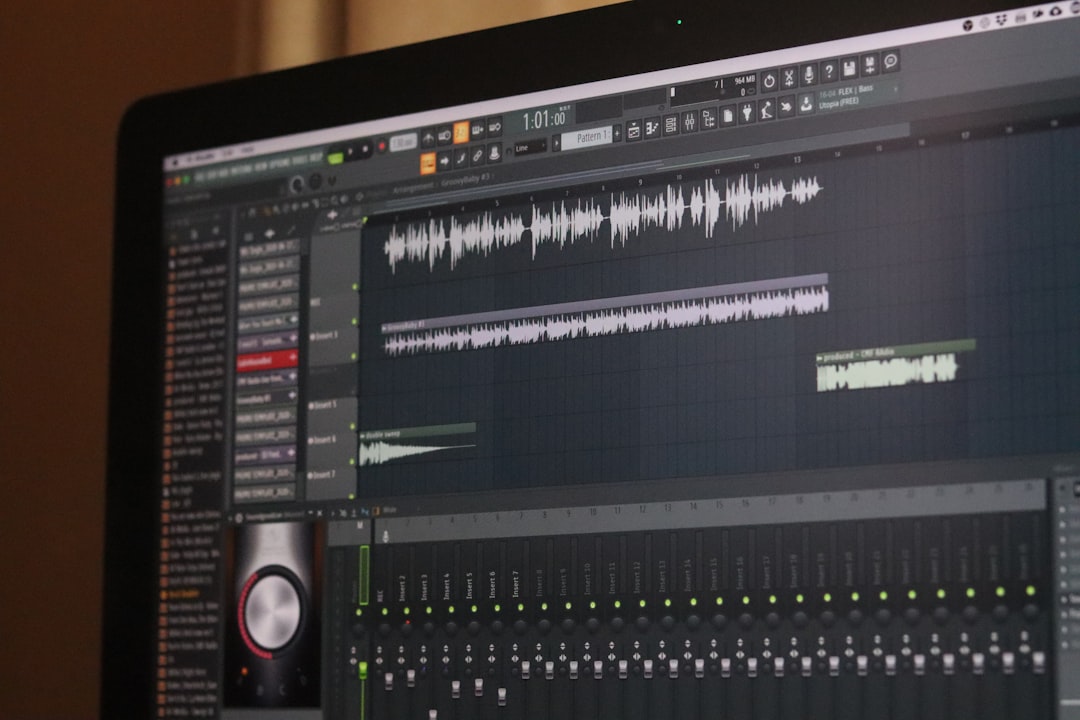
Want to add some giggles to your videos on Windows 10 or 11? Adding a laugh track can turn a dull video into a comedy gem. The good news? It’s easier than you think!
Whether you’re editing a funny vlog, mock interview, or sitcom-style sketch, a laugh track can make your scenes pop. Let’s dive into the best and *simplest* ways to add a laugh track from your Windows PC without pulling your hair out.
1. Use Clipchamp (Free, Built-in)
Here’s a hidden gem! Windows 11 comes with Clipchamp, a user-friendly video editor by Microsoft. If you’re on Windows 10, no worries — you can download it free from the Microsoft Store.
Here’s how to add a laugh track with Clipchamp:
- Open Clipchamp.
- Import your video and the laugh track audio file.
- Drag the video to the timeline.
- Drag the laugh track below it on the audio line.
- Trim and sync audio as needed.
- Export your giggle-enhanced masterpiece!
Pro Tip: Clipchamp offers audio libraries. Search “laugh” and you may find built-in sounds!
Image not found in postmeta2. Try Audacity and Video Editor Combo
If you want more precise control over your audio, you can use Audacity — a free audio tool that’s beloved by podcasters and meme creators alike.
Here’s the process:
- Open Audacity and import the laugh track.
- Use tools like fade-in/out, volume boost, and echo.
- Export your polished audio file as MP3 or WAV.
- Import your video (using something like Windows Video Editor, Clipchamp, or even VLC).
- Mute original audio if needed and overlay the laugh sound.
This combo gives you more freedom and polish. Want to make the laugh echo like in an empty theater? Done. Want it muffled like it’s coming from the next room? Totally doable.
3. Use DaVinci Resolve (Pro-Level, Still Free!)
Feeling adventurous? Go big with DaVinci Resolve. It’s a free high-end video editor used for Hollywood-grade editing. Yep, Hollywood, and it works on Windows 10 & 11 too.
Steps are a bit more advanced but totally worth it:
- Download and install DaVinci Resolve.
- Create a new project and import your video and laugh track.
- Drag them to the timeline.
- Use the Audio Fairlight panel to adjust volume, EQ, and reverberation.
- Add giggles throughout your clips for that classic sitcom vibe.
This tool has a slight learning curve, but your videos will shine with its audio magic.
4. Online Tools (Quick and Easy)
No space on your PC or want a faster fix? Check out online editors like:
- Kapwing
- Veed.io
- Canva Video Editor
These tools let you upload videos and audio directly to the browser. Most offer drag-and-drop laugh tracks or let you upload your own. They’re perfect for lighter edits and avoiding heavy downloads.
Just watch out: Free versions may have watermarks or export limits.
Where to Get Laugh Tracks
You can’t add laughs without the laughs! Here are some great sources:
- Freesound.org – Variety of laugh types, all free
- Zapsplat.com – Royalty-free sound FX heaven
- YouTube Audio Library – Just search and download
Be sure to check licenses. Most free sites allow use as long as you credit the creator.
Tips for Maximum Chuckles
- Don’t overdo it. Use laugh tracks where it makes sense, not every 10 seconds!
- Layer different laughs to make canned laughter sound more real.
- Time the laugh right after punchlines, not during the joke.
- Test on friends. If they giggle, you nailed it!
Adding a laugh track isn’t just for comedy shows — it’s a great way to boost engagement and fun. Especially if you’re making parodies, sketches, meme montages or hilarious fails compilations.
Final Thoughts
On Windows 10 or 11, adding a laugh track is not only possible — it’s super fun. Whether you’re a total beginner rocking Clipchamp, or more advanced with DaVinci or Audacity, laughter is just a timeline away.
So go on! Edit, laugh, export, and make the internet roll on the virtual floor laughing. 😄