Whether you’re moving to a new hosting provider or changing your domain, migrating a WordPress site can be a delicate and complex process. While it may seem straightforward, even small errors during migration can lead to broken links, functionality issues, lost data, or even website downtime. These problems can significantly harm your website’s credibility, SEO rankings, and user experience. To help you avoid the most frequent pitfalls, we’ve compiled a list of the most common mistakes made during WordPress site migration—and provided tips on how to prevent them.
1. Not Backing Up the Site Properly
This cannot be emphasized enough: always make a complete backup of your WordPress site before migrating it. This includes backing up your database, theme files, plugins, uploads, and any customizations made in your theme or functions.php files. Without a reliable backup, you risk permanent loss of content and functionality if anything goes wrong during the migration process.
Use trusted backup plugins such as UpdraftPlus, Duplicator, or BackupBuddy to create both manual and automated backups. Save the backup in multiple locations such as your local machine, cloud storage, or an external drive.
2. Ignoring File and Directory Structure
WordPress is reliant on a specific file and folder structure to function correctly. When copying files to a new location, it’s essential to maintain this structure exactly. A small mistake—for example, misplacing the wp-content folder or .htaccess file—can cause major issues such as broken plugins, missing images, or the infamous white screen of death.
Make sure your migration process includes preserving the following key components:
- wp-content folder – contains themes, plugins, and media uploads
- wp-config.php – includes database connection settings and security keys
- .htaccess – controls permalinks and URL redirections
3. Failing to Update wp-config.php Correctly
When migrating to a new server or domain, you must update the wp-config.php file with the new hosting database details such as:
- DB_NAME
- DB_USER
- DB_PASSWORD
- DB_HOST
Any typos or incorrect credentials here will prevent WordPress from connecting to the database, often resulting in a “Error establishing a database connection.” Always double-check these fields, and ensure the database itself has the appropriate user roles and permissions set up.
4. Overlooking Serialized Data During Search and Replace
When changing your site’s domain, you’ll often need to update the URLs in your database. A common mistake is doing a simple find-and-replace that doesn’t take serialized arrays and objects into account. This can corrupt plugin settings, theme options, and even crash your WordPress admin dashboard.
Instead of using a raw SQL query or text editor, use tools built for the job, such as:
- Better Search Replace plugin
- WP Migrate DB
- WP-CLI search-replace function
These tools properly handle serialization and ensure smooth data integrity during URL transitions.
5. Skipping Redirects and SEO Considerations
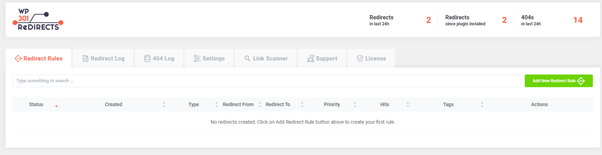
Your WordPress site migration can impact search engine rankings if redirects, canonical URLs, and sitemap settings aren’t given attention. If you’ve changed domain names or URL structures, it’s critical to use 301 permanent redirects from the old URLs to the new ones. This tells search engines that your content has moved and helps preserve your SEO traffic.
Don’t forget these important SEO-related actions:
- Update internal links
- Resubmit your new XML sitemap to Google Search Console and Bing Webmaster Tools
- Update the canonical URLs in your theme or SEO plugin
6. Not Testing the Site After Migration
One of the most overlooked steps in site migration is thorough testing. Assuming that the site is live and functional without review can be disastrous. After migration, take time to test the entire site, including:
- Navigation menus
- Contact forms
- Payment gateways (if e-commerce is involved)
- Login functionality and user roles
- Mobile responsiveness
- Page loading speed
Also, use browser developer tools and online tools such as Broken Link Checker or Screaming Frog SEO Spider to check for 404 errors and missing resources.
7. Forgetting to Update DNS Configuration
After migrating to a new server or domain, your DNS (Domain Name System) records must point to the new server’s IP address. Failing to update these settings correctly can result in long downtime while visitors are sent to the old server. It’s also important to account for DNS propagation time, which can take up to 48 hours globally.
If you’re not familiar with DNS settings, consult your domain registrar’s documentation or ask their support for help in updating your A records, CNAME, and MX records where necessary.
8. Not Putting the Site in Maintenance Mode
Migrating a WordPress site while it’s live can lead to incomplete backups, database corruption, and broken content. A safer method is to put your site in “maintenance mode” during the transition. This alerts visitors that the site is undergoing updates and prevents them from interacting with content while it’s being moved.
Use plugins like WP Maintenance Mode or SeedProd to easily enable a professional-looking maintenance screen.
9. Ignoring File Permissions and Ownership
After uploading WordPress files to the new host, improper permissions can prevent critical processes such as plugin installation, media uploads, and theme customization. Make sure to:
- Set directories to
755 - Set files to
644 - Ensure ownership matches the web server’s user (for example,
www-dataon many Linux distributions)
Connect via SSH or use your hosting control panel’s file manager to adjust these settings accordingly.
10. Not Disabling Caching and Security Plugins
Before migrating, disable any caching or security plugins such as W3 Total Cache, WP Super Cache, or Wordfence. These plugins can interfere with file movement, URL recognition, and proper server response after migration.
Once the migration is successful, clear all caches and re-enable your plugins. Carefully rescan security settings to ensure the new environment hasn’t introduced vulnerabilities.
Conclusion
WordPress site migration is not something to approach lightly. A well-executed migration ensures that your website remains functional, secure, and SEO-optimized. By avoiding the common mistakes listed above and following a structured, detail-oriented process, you can move your WordPress site confidently and safely.
Make sure to document your process so you can replicate it in future migrations and have a plan for post-migration support and monitoring. When in doubt, seek the expertise of WordPress professionals who have handled complex migrations before — saving you significant time, stress, and potential loss.