

If you have ever clicked Update or Publish in the WordPress block editor and been greeted by the message “The response is not a valid JSON response”, you know how frustrating it can be. The error often appears suddenly, blocks you from saving content, and gives very little explanation. Fortunately, it is usually caused by a communication problem between WordPress, your server, and the REST API—and in most cases, it can be fixed with a few targeted checks.
TLDR: The “response is not a valid JSON response” error usually means WordPress expected structured JSON data but received something else instead. Common causes include broken permalinks, REST API issues, security plugin interference, mixed HTTP and HTTPS settings, server misconfiguration, or plugin conflicts. Start by resaving permalinks, checking your site URLs, disabling conflicting plugins, and reviewing server or firewall rules. If the issue persists, enable debugging and inspect the REST API response for clues.
What Does “The Response Is Not a Valid JSON Response” Mean?
WordPress relies heavily on the REST API, especially when you use the block editor, also known as Gutenberg. When you save a post, upload media, update widgets, or modify certain settings, WordPress sends a request to the server and expects a response in JSON format. JSON is a lightweight data format that looks structured and predictable, allowing WordPress to understand exactly what happened.
The problem appears when WordPress receives something other than valid JSON. Instead of a neat response like {"success":true}, the server might send an HTML error page, a redirect, a PHP warning, a firewall message, or even an empty response. WordPress cannot interpret that unexpected result, so it displays the error.
This is why the message can feel vague: the issue is not always inside the editor itself. It may come from your permalink settings, SSL configuration, plugin behavior, hosting server, cached files, or even a security rule blocking REST API requests.
1. Resave Your WordPress Permalinks
The easiest and often most effective fix is to refresh your permalink structure. WordPress uses rewrite rules to create clean URLs and route REST API requests. If those rules become outdated or corrupted, the editor may fail to communicate properly with the server.
To resave permalinks:
- Go to Settings > Permalinks in your WordPress dashboard.
- Do not change anything unless you need to.
- Click Save Changes.
- Return to your post or page and try saving again.
This simple action regenerates rewrite rules in WordPress. If your .htaccess file was missing rules or had stale configuration, this may immediately resolve the JSON error.
2. Check Your WordPress Address and Site Address
A common cause of this error is a mismatch between your website URLs. For example, your WordPress dashboard might be using https://example.com, while your site address is set to http://example.com. This creates a mixed communication problem, especially when SSL is enabled.
Go to Settings > General and check these two fields:
- WordPress Address URL
- Site Address URL
Make sure both use the same format. If your site has an SSL certificate, both should usually begin with https://. Also check whether you are using www or non-www, and keep that consistent across both fields.
Important: If these fields are greyed out, they may be defined in your wp-config.php file. In that case, you will need to adjust the constants there or ask your hosting provider for help.
3. Fix Mixed Content and SSL Problems
SSL issues are especially common after moving a site from HTTP to HTTPS. If some resources or API requests still use HTTP, your browser or server may block them. The block editor then receives an invalid or incomplete response.
Start by checking whether your SSL certificate is valid. Visit your website in a browser and look for the padlock icon beside the URL. If the browser shows a warning, your SSL setup needs attention.
You can also use a plugin or hosting tool to force HTTPS across your site. However, avoid stacking multiple SSL redirection plugins, because competing redirect rules can cause loops or broken API responses.
For a cleaner setup, confirm that:
- Your SSL certificate is active and not expired.
- Your WordPress and Site Address URLs use
https://. - Your server redirects HTTP to HTTPS only once.
- Your CDN, if used, is also configured for HTTPS.
4. Disable Plugins to Find Conflicts
Plugins extend WordPress, but they can also interfere with the REST API. Security plugins, firewall plugins, caching tools, optimization plugins, and custom code snippets are frequent suspects. A plugin might block API requests, strip headers, compress output incorrectly, or inject warnings into the response.
To test for plugin conflicts:
- Back up your site first, especially if it is live.
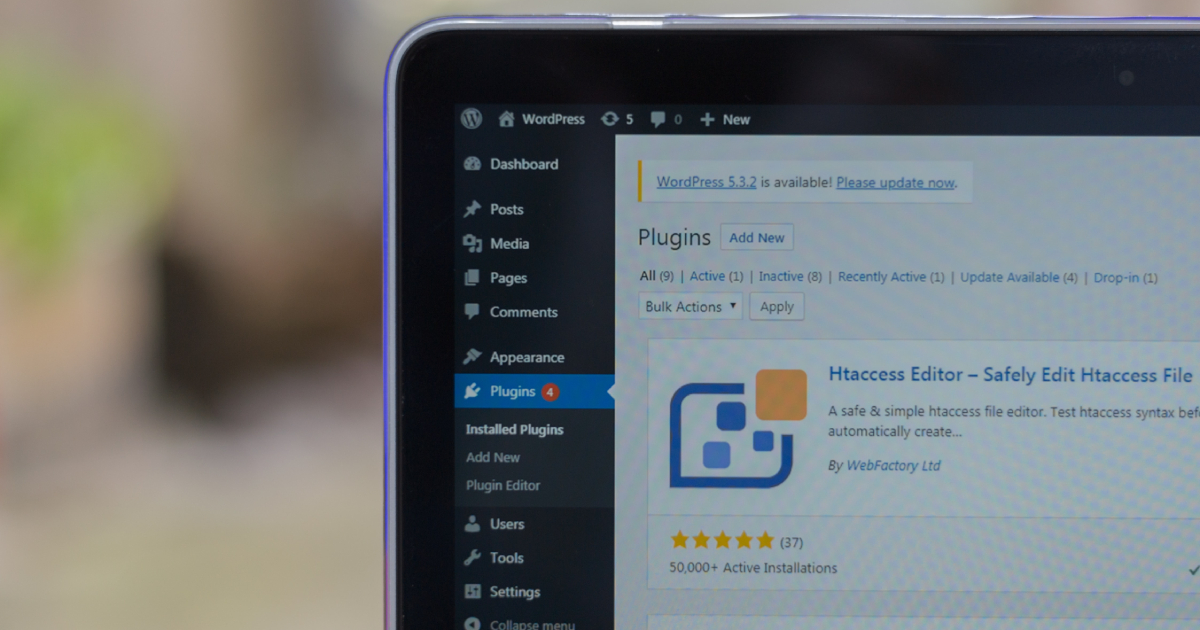
- Go to Plugins > Installed Plugins.
- Deactivate all plugins temporarily.
- Try saving a post or page again.
- If the error disappears, reactivate plugins one by one.
- Test the editor after each activation until the error returns.
Once you identify the problematic plugin, check its settings. Security plugins may have an option to allow REST API access. Caching plugins may need their cache cleared or advanced optimization features disabled. If the plugin is outdated, update it or contact the developer.
5. Switch Temporarily to a Default Theme
The theme can also be responsible, particularly if it includes custom functions that modify REST API behavior, output PHP warnings, or load scripts incorrectly in the editor. This is more likely with older themes, heavily customized themes, or themes bundled with many built-in features.
To test this safely, switch temporarily to a default WordPress theme such as Twenty Twenty-Four or another current default theme. Then try saving your content again.
If the error disappears after changing themes, the issue is probably in your theme’s code. Check for updates, review custom functions in functions.php, or contact the theme developer. If you are using a child theme, compare it with the parent theme to determine whether the problem comes from your customizations.
6. Check the REST API Status
Because this error is closely tied to the WordPress REST API, it is useful to check whether the API is working at all. You can do this by visiting a URL like:
https://yourdomain.com/wp-json/
Replace yourdomain.com with your actual domain. If everything is working, you should see a page of structured JSON data. It may look messy to a human, but it should begin with brackets or braces and include information about routes and namespaces.
If you see a 404 page, a 403 forbidden message, a 500 server error, a login page, or a firewall warning, then WordPress is not receiving the valid JSON response it expects.
Possible causes include:
- Broken permalink rules
- Security plugin restrictions
- Server firewall rules
- Incorrect file permissions
- Faulty redirects
- PHP errors appearing before the JSON output
7. Review Security and Firewall Settings
Many WordPress sites use security layers such as plugins, web application firewalls, CDN firewalls, or hosting-level protection. These tools are useful, but they can accidentally block legitimate REST API requests.
If your firewall thinks an editor request looks suspicious, it may return an HTML block page instead of JSON. WordPress then throws the invalid JSON error.
Look for settings related to:
- REST API blocking
- XML-RPC and API protection
- Bot protection
- Rate limiting
- ModSecurity rules
If your host uses ModSecurity, ask support whether any rules are being triggered when you attempt to save a post. Hosting providers can often identify the exact rule and whitelist it if necessary.
8. Clear Caches Everywhere
Caching improves performance, but old cached responses can create strange behavior in the WordPress editor. If a cache layer serves an outdated redirect, compressed response, or blocked request, the JSON error may appear even after you fix the original cause.
Clear cache in all relevant places:
- Your WordPress caching plugin
- Your hosting control panel
- Your CDN dashboard
- Your browser cache
- Any server-side object cache, if enabled
After clearing cache, log out and back into WordPress, then test the editor again. If you use aggressive JavaScript or CSS optimization, temporarily disable those features while troubleshooting.
9. Look for PHP Errors and Warnings
Sometimes WordPress does generate JSON, but PHP warnings or notices are printed before it. Even a single unexpected line of text can make the response invalid. This often happens after a plugin update, theme change, or PHP version upgrade.
To investigate, enable debugging in your wp-config.php file:
define('WP_DEBUG', true);
define('WP_DEBUG_LOG', true);
define('WP_DEBUG_DISPLAY', false);
This tells WordPress to log errors without displaying them to visitors. After reproducing the problem, check the file located at wp-content/debug.log. Look for fatal errors, warnings, or notices related to plugins, themes, or custom code.
Remember to disable debugging after troubleshooting, especially on a live site.

10. Check Your .htaccess File
On Apache servers, WordPress depends on the .htaccess file for rewrite rules. If the file is missing, locked, or contains conflicting directives, REST API routes may break.
The default WordPress rules usually look like this:
# BEGIN WordPress
<IfModule mod_rewrite.c>
RewriteEngine On
RewriteRule .* - [E=HTTP_AUTHORIZATION:%{HTTP:Authorization}]
RewriteBase /
RewriteRule ^index\.php$ - [L]
RewriteCond %{REQUEST_FILENAME} !-f
RewriteCond %{REQUEST_FILENAME} !-d
RewriteRule . /index.php [L]
</IfModule>
# END WordPress
If you are comfortable using FTP or your hosting file manager, you can rename the existing .htaccess file as a backup and then resave permalinks to generate a fresh one. If you are not comfortable doing this, contact your host or developer.
11. Increase Server Limits
In some cases, the server times out or runs out of memory while processing editor requests. This is more likely on large pages, media-heavy posts, WooCommerce stores, membership sites, or websites with many active plugins.
Helpful server settings include:
- PHP memory limit: 256M or higher for complex sites
- Max execution time: 120 seconds or higher
- Upload max filesize: suitable for your media uploads
- Post max size: larger than your upload limit
You may be able to adjust these in your hosting panel, php.ini, .user.ini, or wp-config.php. If not, your hosting provider can usually make the change.
12. Try the Classic Editor as a Temporary Workaround
If you need to publish urgently, installing the Classic Editor plugin may let you continue working while you troubleshoot. The classic editor does not rely on the REST API in the same way as the block editor, so it may avoid the error temporarily.
This is not a true fix, but it can be useful when deadlines matter. You should still investigate the underlying issue because REST API problems can affect other features, including WooCommerce, forms, widgets, site health checks, and third-party integrations.
A Practical Troubleshooting Order
If you are not sure where to start, use this quick sequence:
- Resave permalinks.
- Confirm WordPress and Site Address URLs match.
- Check HTTPS and SSL configuration.
- Visit
/wp-json/to test the REST API. - Clear all caches.
- Temporarily disable plugins.
- Switch to a default theme.
- Review firewall or ModSecurity settings.
- Enable debugging and inspect error logs.
- Ask your host to check server logs if needed.
Final Thoughts
The WordPress message “The response is not a valid JSON response” sounds technical, but the root cause is usually straightforward: WordPress asked the server for JSON and received something invalid instead. Your job is to find what interrupted or changed that response.
Start with the simple fixes—permalinks, URLs, SSL, and cache—before moving into deeper checks like plugins, themes, firewalls, and server logs. By working methodically, you can usually identify the cause without guessing. Once fixed, the block editor should save and publish normally again, and your site’s REST API will be healthier for everything else that depends on it.