
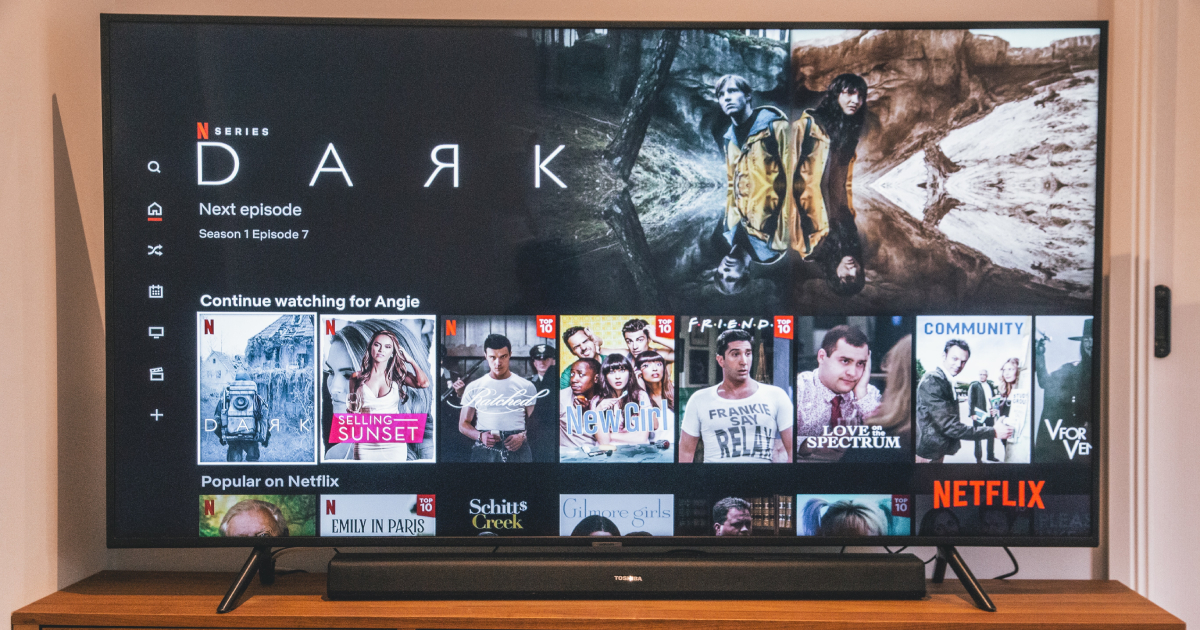
If you’re using Netflix and want to enjoy your viewing experience in a different language—whether it’s for audio, subtitles, or the interface itself—it’s essential to understand how to change these settings across your devices. Whether you’re on a TV, mobile phone, or computer, changing the language settings on Netflix is a straightforward process if you follow the right steps. In this guide, we will walk you through how to change Netflix language settings on three common platforms: Smart TV, Mobile (Android & iOS), and PC or Web browser.
Why Change Your Netflix Language Settings?
Changing your Netflix language can significantly improve your streaming experience. Whether you’re a bilingual user, learning a new language, or want to watch foreign-language content in your native tongue, correctly configuring the language settings makes a difference. More importantly, Netflix allows you to change not only the display language (for menus and interface) but also content language like audio and subtitles, which opens the door to an even wider array of content.

1. Changing Netflix Language on TV
If you’re using Netflix on a smart TV, streaming device (like Roku or Amazon Fire TV), or a game console, follow these steps:
a. Changing Profile Language (Interface)
- Open the Netflix app on your TV and make sure you’re logged in.
- Using a computer or mobile browser, go to netflix.com and log into your account.
- Hover over your profile icon in the upper right corner and click on “Manage Profiles.”
- Select the profile for which you want to change the display language.
- From the Language dropdown, choose your desired language.
- Click Save. It may take a few moments for changes to reflect on your TV.
Note: Changing the profile language affects menus, titles, and description displays. This will not change the audio or subtitle settings by default.
b. Changing Audio and Subtitles Language
- Play a TV show or movie.
- While the video is playing, press the language or subtitles icon (it often looks like a speech bubble or may appear under settings).
- Select your preferred Audio and Subtitles language from the available list.
- Your settings will be remembered for this profile and used by default in the future.
Tip: Not all titles are available with all language options. Netflix recommends content based on your language preferences.
2. Changing Netflix Language on Mobile (Android & iOS)
Changing language settings on mobile is useful for users who primarily stream content on phones or tablets. Here’s what you need to do:
a. Changing Display Language
- Open a web browser on your mobile device.
- Navigate to netflix.com and sign in.
- Tap the menu (three horizontal lines), then tap Account.
- Scroll down to Profile & Parental Controls and choose the profile to update.
- Click Language, select your preferred language, and tap Save.
Note: This change will apply to both mobile and other devices using that profile.
b. Changing Audio and Subtitle Language
- Open the Netflix app on your mobile device.
- Play any content you want to watch.
- While the video is playing, tap the screen to show controls.
- Tap the Audio and Subtitles option.
- Select your desired language and go back to resume playback.
This setting will usually remain for future videos unless unavailable for a specific title.
Default Language Settings via App
If you’re constantly switching languages, consider logging out and back in. Upon re-login, Netflix occasionally asks your language preference, which you can adjust right then.
3. Changing Language Settings on PC or Laptop
When using Netflix on a browser, changing your language settings is even more intuitive, offering you the best control over your preferences.
a. Changing Profile Language
- Go to www.netflix.com and log in.
- Hover over your profile icon on the top-right corner and click on Manage Profiles.
- Click the profile you want to edit.
- Under Language, select the language you wish to use for the Netflix interface and content discovery.
- Click Save.
b. Changing Audio and Subtitles
- Click on a film or series and start playing it.
- Click the dialogue icon in the lower right corner of the player.
- Choose from the available audio and subtitle languages.
If your chosen language doesn’t appear, it may not be supported for that specific title. Netflix normally offers audio and subtitles based on viewer preferences and availability in your region.
Setting Content Language Preferences
You can also inform Netflix of your preferred languages when discovering new content. This increases your chances of finding titles with the audio or subtitle options you prefer.
- Visit the Language Preferences section (when logged in).
- Select one or more languages that interest you.
- Netflix will tailor its recommendations based on your needs.
Helpful Tips for Better Experience
- Multiple Profiles: Each profile can have its own language settings. Perfect for households with multicultural backgrounds or language learners.
- Consistency: When changing language on one platform, ensure others are updated as well to maintain consistency.
- Original Audio: Watching in the original language with subtitles enhances linguistic and cultural understanding.
- Kids’ Profiles: These have limited language options. Consider switching back to an adult profile for full functionality.
Common Issues and Fixes
- Language Doesn’t Change: Log out and log back in. Also, ensure the device is connected to the internet to sync changes.
- Subtitle Not Available: Try checking availability for another content title or see if other profiles have the same issue.
- Audio Not Playing in Selected Language: Restart the app or switch to a supported title if the language-specific audio isn’t present.

Final Thoughts
Netflix offers robust language support, and making adjustments to suit your personal preferences only enhances your streaming journey. Whether you’re navigating through the interface in your native tongue, exploring international content, or simply want to watch with subtitles, knowing how to manage language settings is key. By following the steps outlined above across TV, mobile, and PC, you can tailor your viewing experience to be as accessible and enjoyable as possible.
With frequent updates and a growing global library, staying updated on how to modify these settings ensures you never miss out on content that speaks your language—literally.