

A green screen on your laptop can be alarming. Whether it appears as a solid green display, flickering green lines, or a sudden green tint over everything, the issue usually points to a problem with your display settings, graphics drivers, or hardware components. Fortunately, most green screen issues can be diagnosed and fixed without replacing your entire machine.
TLDR: A green screen on a laptop is typically caused by outdated graphics drivers, incorrect display settings, loose internal connections, or failing hardware like the GPU or LCD panel. Start with simple fixes such as restarting, updating display drivers, and adjusting color settings. If the problem persists, test with an external monitor to isolate the issue and inspect hardware connections. In severe cases, professional repair or part replacement may be necessary.
Understanding Why Your Laptop Screen Turns Green
A green screen is rarely random. It usually indicates one of three main categories of problems:
- Software or driver issues
- Display configuration or color setting errors
- Hardware malfunction
Your laptop’s display relies on precise communication between the graphics processing unit (GPU), the display driver, and the LCD panel. If any link in this chain fails, color distortions like a green screen can appear.
Step 1: Quick Fixes You Should Try First
Before diving into advanced troubleshooting, start with these simple solutions.
1. Restart Your Laptop
It sounds basic, but restarting your device can reset temporary glitches affecting your display driver.
- Save your work.
- Completely shut down the laptop.
- Wait 30–60 seconds.
- Turn it back on.
If the green screen disappears, the problem was likely a temporary software issue.
2. Check External Connections
If you are using an external monitor:
- Disconnect and reconnect the HDMI or DisplayPort cable.
- Try a different cable.
- Test another port if available.
Sometimes a damaged cable can cause color distortion.
Step 2: Adjust Display and Color Settings
Incorrect color calibration can cause a green hue across your display.
Windows Users
- Right-click on the desktop.
- Select Display Settings.
- Click Advanced Display Settings.
- Check color format and refresh rate.
Next, reset your color calibration:
- Search for Color Management in the Start menu.
- Select your display.
- Click Calibrate Display and follow the steps.
Mac Users
- Open System Settings.
- Select Displays.
- Choose Color Profile.
- Try a different profile or recalibrate.
If recalibration fixes the green tint, the issue was purely configuration-based.
Step 3: Update or Reinstall Graphics Drivers
Outdated or corrupted graphics drivers are one of the most common causes of green screen issues. Drivers control how your operating system communicates with your GPU.
How to Update Drivers on Windows
- Press Win + X.
- Select Device Manager.
- Expand Display Adapters.
- Right-click your graphics card.
- Select Update Driver.
You can choose automatic search or download the latest driver directly from:
- NVIDIA
- AMD
- Intel
If updating doesn’t help, try uninstalling:
- Right-click the graphics adapter.
- Select Uninstall Device.
- Restart your laptop.
Your system will reinstall a fresh driver automatically.
Mac Graphics Updates
On Macs, graphics drivers are updated through system updates:
- Go to System Settings.
- Select General → Software Update.
Install any available updates and restart your system.
Step 4: Test With an External Monitor
This step helps determine whether your problem is software or hardware-related.
- Connect your laptop to an external monitor or TV.
- Observe if the green screen appears on both displays.
Scenario A: External Monitor Is Fine
If the external display looks normal, your laptop screen or internal display cable may be faulty.
Scenario B: Both Screens Show Green
If both show green distortion, the issue likely lies with the GPU or software.
Step 5: Check for Overheating GPU
Overheating can damage graphics components, leading to display problems.
Signs include:
- Loud fan noise
- Laptop getting unusually hot
- Green flickering before shutdown
To resolve overheating:
- Clean air vents with compressed air.
- Use a cooling pad.
- Avoid placing the laptop on soft surfaces.
If overheating continues, the internal thermal paste may need replacement—a task better handled by a professional.
Step 6: Inspect Hardware Components
If software fixes do not work, hardware inspection may be necessary.
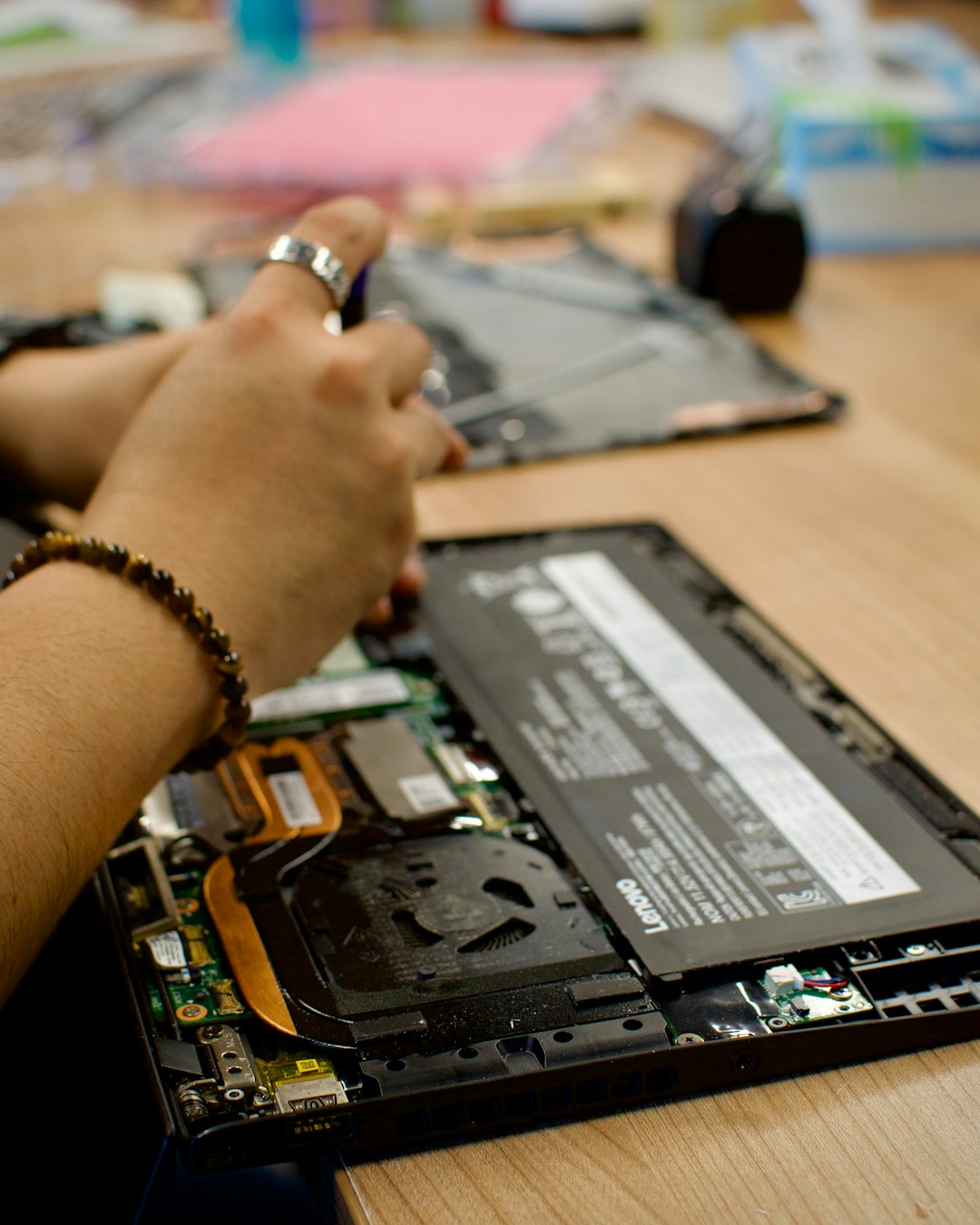
1. Loose or Damaged Display Cable
Inside your laptop, a ribbon cable connects the motherboard to the display panel. If loose or damaged, it can distort colors.
- Green tint when tilting the screen.
- Flickering as you move the lid.
This requires opening the laptop and reseating or replacing the cable.
2. Failing LCD Panel
If the panel itself is deteriorating, you may notice:
- Permanent green tint
- Vertical green lines
- Dead pixels
Replacing the LCD panel is often cheaper than buying a new laptop.
3. Faulty Graphics Card
If your GPU is failing:
- Artifacts or colored blocks may appear.
- The issue persists across external displays.
- The laptop may crash frequently.
In laptops with integrated graphics, motherboard replacement may be required. In gaming laptops with dedicated GPUs, repair costs can be significant.
Step 7: Boot in Safe Mode
Safe Mode loads minimal drivers and can help identify software issues.
Windows Safe Mode
- Press Win + R.
- Type msconfig.
- Go to Boot tab.
- Select Safe Boot.
- Restart.
If the green screen disappears in Safe Mode, the issue is almost certainly driver-related.
Step 8: Perform a System Restore
If the problem appeared after a recent update or installation:
- Search for System Restore.
- Choose a restore point before the issue started.
This can roll back problematic software changes without affecting your files.
When to Seek Professional Help
You should consult a technician if:
- The screen remains green despite all software troubleshooting.
- The laptop overheats excessively.
- Physical damage is visible.
- The device shuts down randomly.
A professional can run diagnostic tools and confirm whether the issue is the motherboard, GPU, display cable, or screen panel.
How to Prevent Green Screen Issues in the Future
Preventative steps can extend your laptop’s lifespan:
- Keep graphics drivers updated.
- Install system updates regularly.
- Clean vents every 3–6 months.
- Use surge protection to avoid power damage.
- Avoid dropping or slamming the laptop lid.
Taking these precautions can reduce the likelihood of hardware-related failures.
Final Thoughts
A green screen on your laptop may feel like a catastrophic failure, but in many cases, it’s a fixable issue tied to drivers, display settings, or simple overheating. By working systematically—starting with quick software fixes and gradually checking hardware—you can pinpoint the problem efficiently.
The key is isolation: determine whether the issue is software or hardware first. From there, repairs become more manageable and often less expensive than expected. With the right troubleshooting steps, your laptop can return to a clear, vibrant display without the unnerving green glow.