
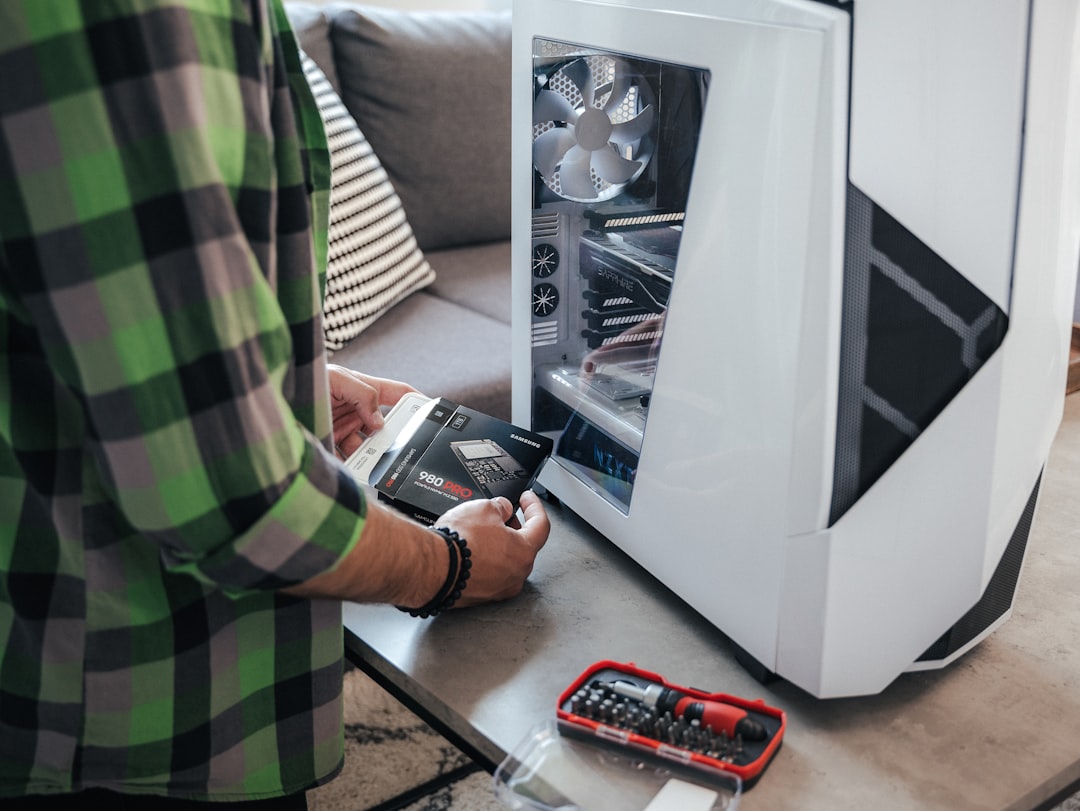
Fatal hardware errors can be alarming. They typically present as system crashes, blue screens of death (BSOD), or a non-responsive computer. Fortunately, many hardware issues can be diagnosed and resolved without the need for advanced technical knowledge. Below are easy, reliable steps to help you resolve fatal hardware errors safely and prevent system failure in the future.
1. Understand What a Fatal Hardware Error Is
A fatal hardware error is a critical malfunction that prevents a computer or device from operating properly. These types of errors can be caused by faulty RAM, a malfunctioning hard drive, incompatible drivers, or overheating components. Common error messages include:
- WHEA_UNCORRECTABLE_ERROR
- Hardware malfunction
- Machine Check Exception
When you see one of these messages, it’s essential not to panic. These errors are fixable, and acting methodically will save you both time and stress.
2. Back Up Your Data Immediately
If your system still boots, the first step should always be to back up your important files. Hardware errors can escalate quickly, potentially resulting in permanent data loss. Use an external hard drive or cloud storage to keep your files safe before proceeding with troubleshooting.
3. Check Physical Connections
Loose cables, improperly seated RAM, or dust-filled components can all trigger fatal hardware errors. Safely turn off your device, unplug it from power, and open the case if possible.
- Disconnect and reconnect all internal components, especially RAM and graphics cards.
- Clean out dust with compressed air to ensure proper airflow and avoid overheating.
- Inspect for burnt smells or visible damage to components.
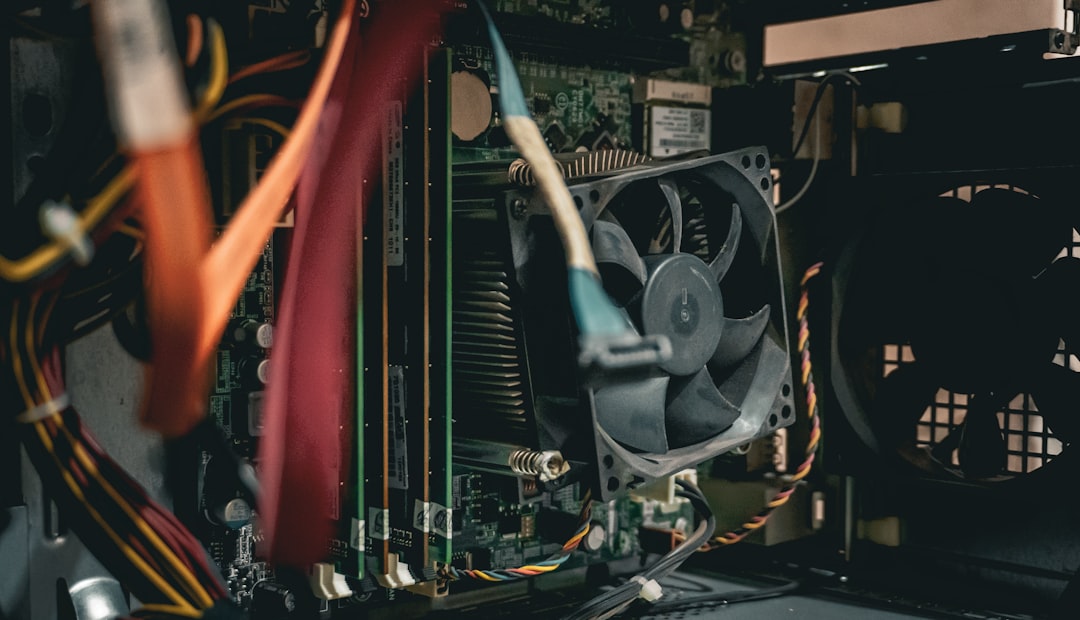
After reassembling the device, turn it on and observe whether the issue persists. Often, reseating hardware alone can fix the problem.
4. Run Basic Diagnostic Tools
Modern motherboards and operating systems come equipped with diagnostic tools designed to identify problems:
- Use Windows Memory Diagnostic to test for bad RAM.
- Use CHKDSK to check for hard disk errors: Open Command Prompt and type
chkdsk /f /r. - Access your system’s BIOS or UEFI to monitor temperatures and voltages.
These utilities give you a strong indication of what might be failing and how severe the issue is.
5. Update or Reinstall Drivers
Outdated or corrupt drivers often lead to hardware conflicts. To ensure your system drivers are not causing the error:
- Open Device Manager and look for devices with a yellow exclamation mark.
- Right-click and select Update Driver.
- Visit the manufacturer’s website for the most recent driver downloads, especially for graphics cards or chipsets.
Reinstalling the correct drivers often resolves compatibility issues that trigger fatal errors.
6. Check for Overheating Issues
Overheating is a common cause of fatal hardware errors. A failing fan or blocked vent can drive your CPU or GPU beyond safe temperature levels.
- Use software tools like HWMonitor or Core Temp to check temperatures.
- Replace thermal paste if necessary and ensure all fans are functioning properly.
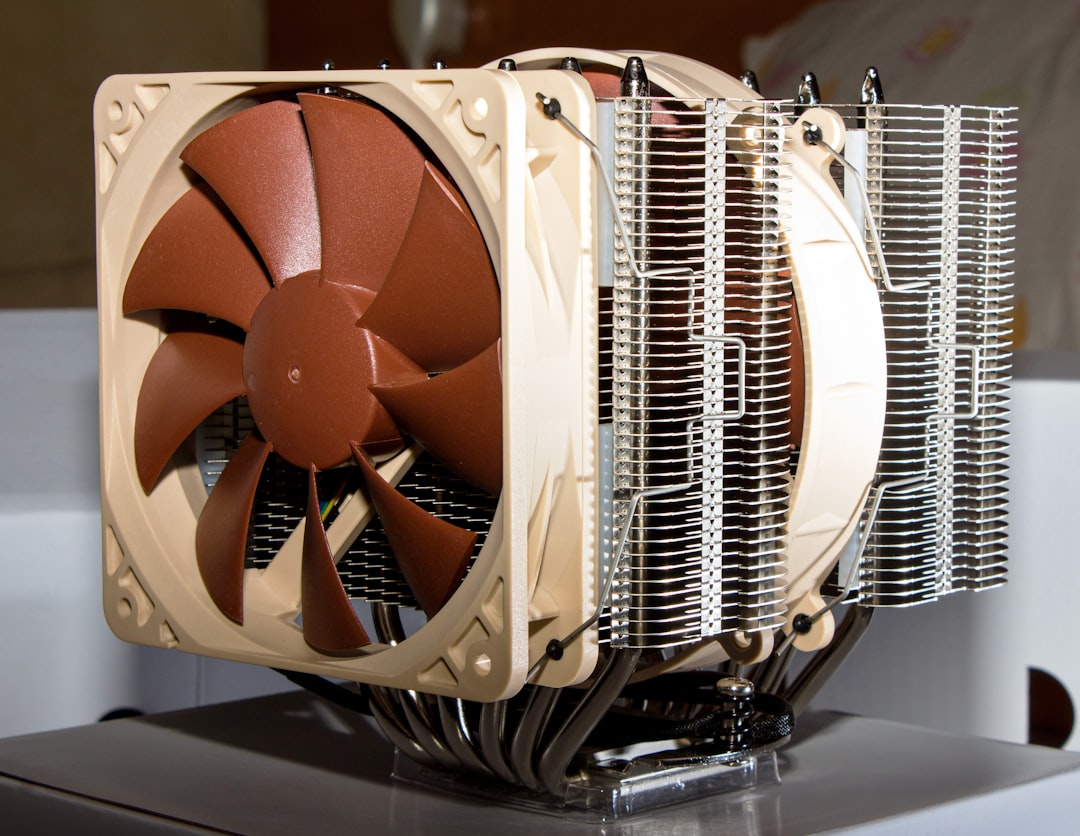
If temperatures exceed acceptable levels (typically 70–90°C for CPUs), you may need to upgrade your cooling system or improve airflow in the case.
7. Replace Suspected Faulty Components
If diagnostics point to a specific component — such as the RAM, hard drive, or power supply — you may need to remove and test or replace it. Whenever possible:
- Test one component at a time using known good parts.
- Swap the potentially bad part to another system if available.
Do not ignore a repeated failure in the same component, especially if other steps haven’t resolved the issue.
8. Update BIOS or Firmware
Sometimes hardware mismatches or bugs in firmware can cause fatal errors. Updating your BIOS may help resolve these problems. However, this step should be taken with caution:
- Visit your motherboard manufacturer’s official website to find the correct BIOS file.
- Follow all instructions carefully during update procedures.
Failure during a BIOS update can cause major problems, so only proceed if you’re confident or can consult a professional.
Conclusion
Resolving fatal hardware errors doesn’t always require a professional technician. By staying calm and methodically working through these steps, you can often identify and resolve the issue yourself.
Preventive maintenance is key—keep drivers updated, check your system temperatures regularly, and clean your computer periodically to ensure optimal performance.
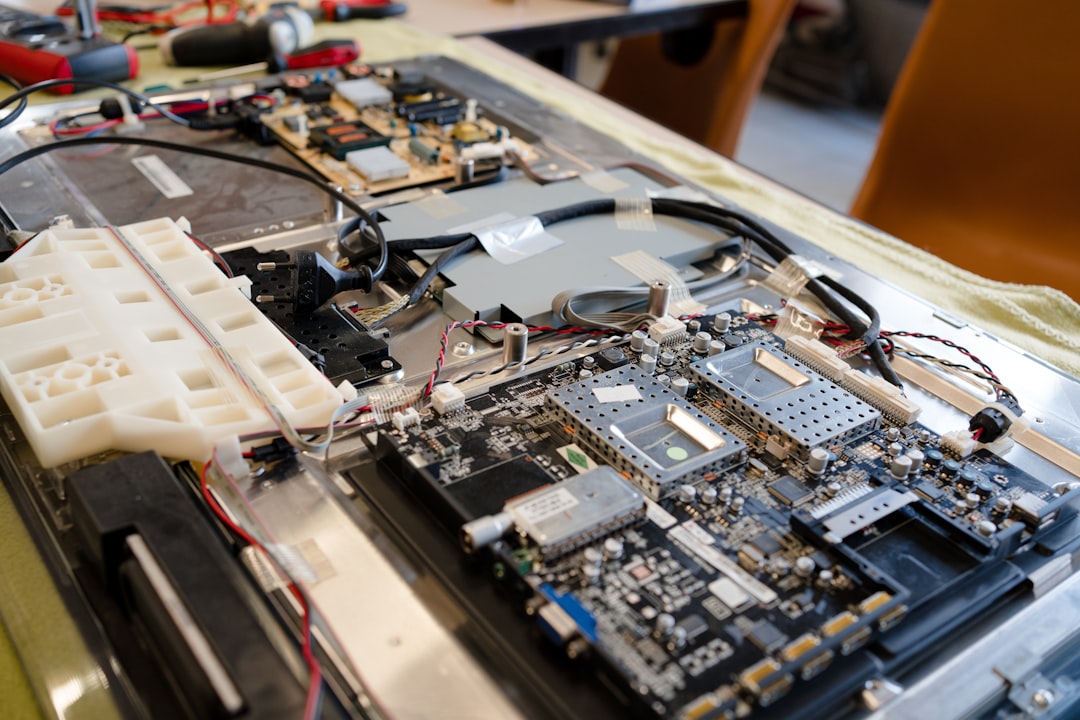
When in doubt, consult your system’s manual or contact a support technician, especially if your hardware is still under warranty. Prompt action and careful attention can prevent data loss and extend the lifespan of your equipment.