
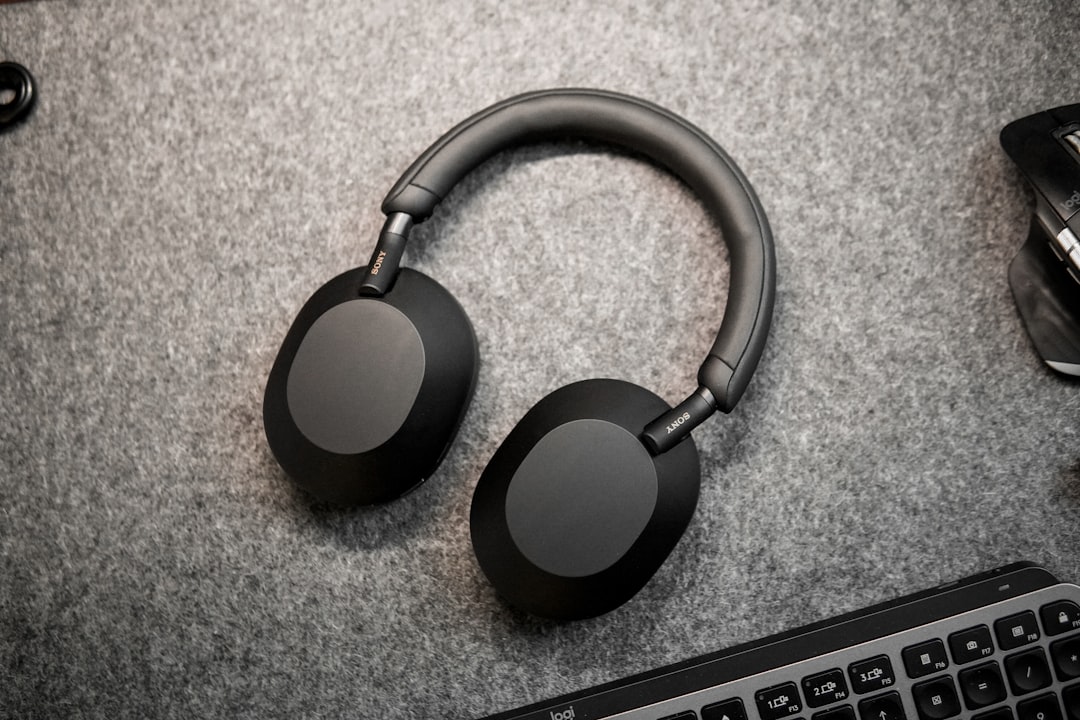
Many Apple users rely on the seamless integration of Siri for hands-free functionality, particularly when wearing headphones during workouts, while driving, or merely multitasking. But when Siri suddenly stops activating while headphones are connected—despite working fine otherwise—it becomes more than an annoyance. This issue, as it turns out, often stems from an overlooked setting related to audio input priority. Understanding and correcting this can restore Siri’s voice activation and enhance the overall experience.
TLDR:
If Siri is not responding when you wear headphones, don’t panic—it’s a common issue. The problem is usually related to the way your device is prioritizing audio input sources. By adjusting your audio input settings and ensuring your headphones are properly registered as an input device, Siri voice activation can be restored. This fix works for both wired and Bluetooth headphones in most cases.
Why Siri Doesn’t Respond When Headphones Are Connected
Normally, when you’re using “Hey Siri” functionality with your iPhone or iPad, the system is supposed to recognize your voice and activate Siri using the built-in microphone or the mic from your connected headphones. However, there are times when this seamless integration breaks without any visible cause. The reason often lies under the hood with audio input prioritization.
Here’s what typically causes the issue:
- Incorrect audio input is selected or prioritized by the operating system
- A hardware bug or OS-level glitch after a system update
- Bluetooth interference or poor headset microphone recognition
- Settings manually changed that disable microphone access for Siri
To worsen matters, most users realize something is wrong only after repeatedly saying “Hey Siri” only to be met with silence while wearing their headphones—not exactly the confidence-inspiring user experience that Apple is known for.
The Role of Audio Input Priority
Your Apple device is built to switch between audio inputs like internal microphones, external microphones, or those connected via Bluetooth or a headphone jack. When headphones have a functioning microphone, iOS/macOS usually prioritizes them for input. However, various reasons—from buggy software updates to manual overrides—can disrupt this logic.
In such cases, the mic in your headphones may either not be selected or not recognized as the correct audio source, resulting in Siri not “hearing” your activation command. Fortunately, the solution largely revolves around resetting or reconfiguring this priority.
Step-By-Step: Fixing Siri Voice Activation With Audio Input Priority
If you’ve already made sure your microphone works during calls or recordings with your headphones, the following steps will help re-enable Siri activation.
1. Check Headphone Microphone Detection
First, confirm your headphones are being recognized as an input source:
- Connect your headphones (Bluetooth or wired).
- Go to Settings > Sounds & Haptics > Headphone Safety.
- Ensure your iPhone is detecting them as active devices.
Avoid using third-party headphones that may not fully support Apple’s voice-activated features. For testing purposes, try using official Apple devices like AirPods or EarPods.
2. Reset Siri Input Settings
Misconfigured settings could be causing Siri to miss your voice. Follow these resets:
- Open Settings > Siri & Search.
- Turn off “Listen for ‘Hey Siri’”.
- Turn it on again and go through the reconfiguration process.
Doing this retrains Siri to recognize voice commands through the correct mic input.
3. Prioritize Audio Input via Control Center (iOS)
This step directly relates to improper mic prioritization:
- Swipe down to open the Control Center.
- Press and hold the audio playback pane (top-right corner).
- Choose the input/output settings and ensure the microphone of your headphones is selected.
For Bluetooth devices like AirPods, verify that both input and output are active. Occasionally, your iPhone may use Bluetooth headphones for audio output but ignore the mic for input, leading to Siri’s inactivity.
4. Test With Voice Memos
Use the Voice Memos app to determine if the microphone on your headphones is functioning:
- Open Voice Memos.
- Record a short memo with your headphones connected.
- Play it back and assess sound quality.
If the audio is silent or distorted, the headphones might be defective or not fully compatible.
Apple’s Software Update Complication
One notable uptick in these reports followed certain iOS updates. Users across forums reported Siri no longer responded when using AirPods or other Bluetooth headsets. These reports highlight flaws in Apple’s automatic audio switching and prioritization logic.
While updates are supposed to improve device behavior, some inadvertently interfere with components like Siri. The falloff in performance can be systemic, and can only be corrected with a combination of reconfiguration, resetting, or, in extreme cases, complete resets of settings (go to Settings > General > Transfer or Reset iPhone > Reset All Settings).
Preventing the Issue from Reoccurring
Once Siri starts responding again after you’ve fixed the priority issue, it’s worth taking the following preventative steps:
- Keep iOS updated: Check for updates regularly as fixes are often included for such behavior.
- Avoid pairing too many Bluetooth devices: Multiple connections can confuse the input source priority.
- Use Apple-certified accessories: MFI-certified headphones are built to meet Apple’s communication standards.
- Restart your device periodically: Memory management can affect how iOS handles mic inputs over time.
These simple checks and habits help ensure Siri continues functioning when you need it most.
When to Seek Apple Support
If you’ve tried all fixes and Siri still fails with headphones, it may point to defective hardware or deeper iOS corruption. In particular, if the microphone on your internal device also becomes unresponsive, that’s a red flag.
You can reach Apple Support or visit a Genius Bar for diagnostics. Remember to back up your device before visiting, in case a full software reset is needed.
Final Thoughts
The inability of Siri to activate while wearing headphones might seem minor at first but can point to more systemic device communication errors. Thankfully, the most common issue—misprioritized audio input—is relatively straightforward to resolve once identified. Reestablishing the correct microphone channel ensures that Siri can listen and respond, whether you’re on a run, walking through the airport, or in the middle of a call.
As Apple continues to promote its voice assistant’s capabilities, understanding how the underlying hardware configuration affects Siri’s functionality can empower users and reduce frustration. Let this serve as a reminder—sometimes the fix lies just beneath the surface, a few taps away in your device’s settings.