

Ever seen a strange error message about ucrtbase.dll and had no clue what it meant? Don’t worry. You’re not the only one! Let’s break it down and learn how to fix it—without any geeky headaches.
What Exactly Is ucrtbase.dll?
ucrtbase.dll is a file that belongs to something big—Microsoft’s C Runtime Library (also known as UCRT). It’s one of those behind-the-scenes heroes. It helps programs run correctly on Windows.
Think of it as the “common sense” part of many applications. It helps them do basic things like math operations, file handling, and memory management.
If this file is missing or damaged, some of your favorite apps and games might stop working. Cue the dreaded error message!
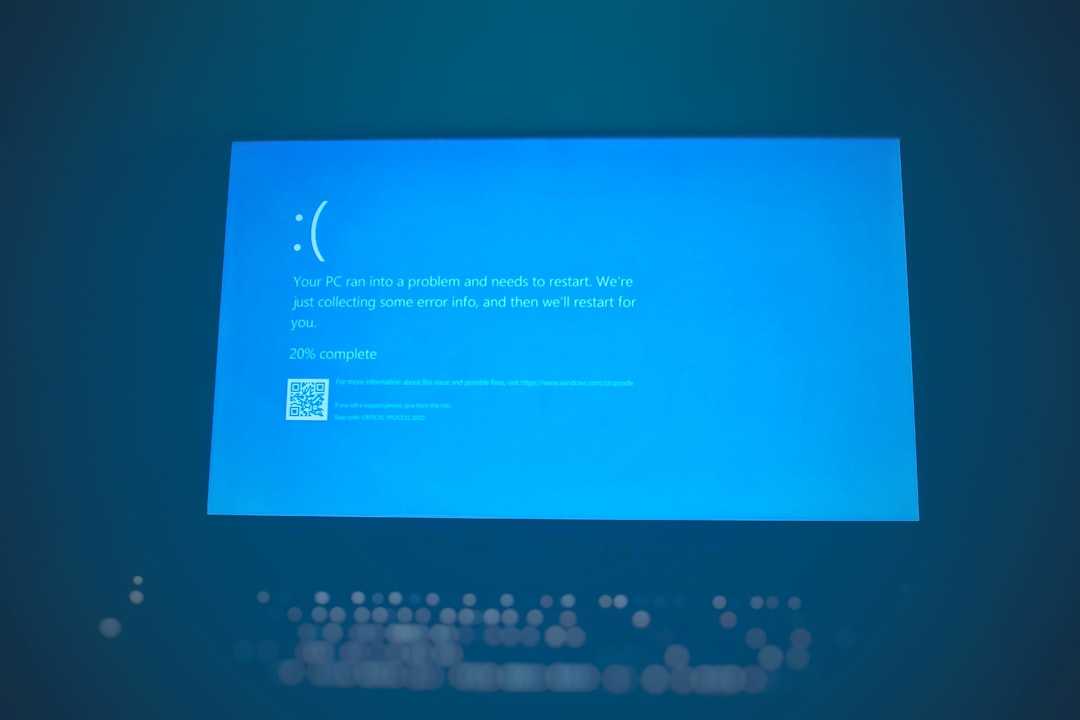
Why Are You Getting an ucrtbase.dll Error?
There are several possible reasons. Here’s a quick list:
- The file is accidentally deleted.
- Your system has a corrupted version of the file.
- A program overwrote it with an incompatible version.
- There’s malware messing with it (yikes!).
- Windows didn’t install some needed updates.
Luckily, these problems are fixable. Let’s talk about how to get your system back in shape!
Types of ucrtbase.dll Error Messages
The errors come in different flavors. A few things you might see include:
- “ucrtbase.dll is missing”
- “ucrtbase.dll not found”
- “The procedure entry point could not be located in ucrtbase.dll”
- “ucrtbase.dll is either not designed to run on Windows or it contains an error”
They look scary, but the fix is usually easier than you think.
How to Fix ucrtbase.dll Errors
There are many ways to solve this. Let’s go through step by step.
1. Restart Your Computer
Simple but mighty. Sometimes, a restart magically makes problems disappear. Try this easy step first.
2. Run Windows Update
Microsoft releases updates that often include fresh versions of system files like ucrtbase.dll.
- Go to Settings.
- Click Windows Update.
- Hit Check for updates.
Install everything available and then restart your PC.
3. Reinstall the Program That’s Giving the Error
If you only get the error with one app, try uninstalling and then reinstalling that specific app.
- Go to Control Panel.
- Click Programs and Features.
- Find the app, uninstall it, and then install it again using a fresh download.
4. Repair Microsoft Visual C++ Redistributable
This is where the ucrtbase.dll file comes from. It’s part of the Visual C++ Redistributable.
- Open Control Panel > Programs > Programs and Features.
- Look for Microsoft Visual C++ Redistributable entries.
- Right-click on each and choose Change, then Repair.
Once done, restart your system.
5. Download and Install the Latest Visual C++ Redistributable
If repairing didn’t work, download the latest version from Microsoft’s official site:
- Visit the official Microsoft download page for Visual C++ Redistributable.
- Choose the correct version for your system (usually x64 for 64-bit Windows).
- Install it and restart your PC.
6. Run System File Checker (SFC)
This is a handy tool built into Windows.
- Type cmd in the search bar.
- Right-click Command Prompt and choose Run as administrator.
- Type
sfc /scannowand press Enter.
Windows will scan for corrupted files and replace them automatically. Grab a cup of coffee—it may take a while!
7. Scan for Malware
Malware can mess with DLL files. Run a full system scan using your antivirus software.
Don’t have one? Use Windows Defender (now called Microsoft Defender). It’s built-in and pretty good.
8. Don’t Download ucrtbase.dll from Random Websites!
Big warning here! You might see sites offering quick .dll downloads. Don’t do it.
They might contain viruses or install the wrong version of the file. Always use official sources like:
- Microsoft’s website
- Trusted software vendors
Still Seeing the Error?
Okay, if none of those worked, you still have options:
Try a System Restore
If things were working fine last week, go back in time. No time machine needed!
- Type “System Restore” in the search bar.
- Follow the prompts to restore your system to a previous working state.
Contact the App’s Support Team
If the issue only happens in one app or game, it might be on their end. Many developers have dedicated support pages and active forums.
What If You’re a Developer?
Hey there, code wizard! If you’re building an app and keep bumping into this error, make sure you:
- Use the correct runtime libraries during compilation.
- Don’t statically link the wrong version of ucrtbase.dll.
- Distribute the necessary redistributables with your installer.
You’ve got this!
Quick Recap
Let’s summarize what we’ve learned about ucrtbase.dll:
- It’s part of the Microsoft C Runtime Library.
- Many programs depend on it to work properly.
- Errors are usually caused by deletion, corruption, or bad installs.
- You can fix it with updates, antivirus scans, and redistributable reinstalls.
Conclusion
Errors like these are annoying, but you don’t need to panic or stare blankly at your screen. With a few easy steps, you’ll be back on track.
Remember: Don’t download DLLs from shady websites, keep your system updated, and trust official sources only.
Now that you know how to fix ucrtbase.dll errors, you’re one step closer to being a Windows troubleshooting ninja!
Happy computing!